Expenses
Please refer to the guide below for detailed information on expenses module.
Manage Expenses: Overview of all expenses list including their statuses
Manage Expenses
- Log on to Chillhub App
- Navigate the expenses page by selecting Menu → Expenses
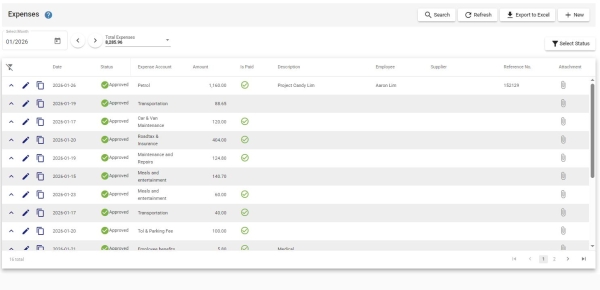
- The following options are located on the toolbar
- Search: Allows you to search for specific data
- Refresh: Updates the current view by reloading the data
- Export to Excel: Enables exporting the current view data to an Excel file.
- New: Creates a new entry or record in the system.
- Additional Filter & Summary:
- Select Month: a calendar selector that allows you to filter expenses by a specific month.
- Monthly Total: Displays a summarized breakdown of the amounts for the selected month
- Total Expenses: The total amount of expenses within the month.
- Data Table: (Note that some of these columns may be hidden in the row details)
- : Expand row to view more details.
- : Modify expense details (Mobile View: expand row to access)
- : Duplicate an existing expense (Mobile View: expand row to access)
- : Delete the expense record
- Date: The date the expense
- Status: Indicates the current stage of the expense claim.
- Draft: Expense is created but not submitted.
- Submitted: Expense has been submitted and is pending approval.
- Approved: Expense has been approved and posted.
- Rejected: Expense has been reviewed but rejected.
- Cancelled: Expense has been withdrawn or voided.
- Expense Account: The account under which the expense falls.
- Amount: The total cost of the expense.
- Currency: The currency code used for this document (e.g., MYR, USD).
- Is Paid: Indicates whether the expense has been paid.
- Description: Details or purpose of the expense.
- Employee: The name of the employee (e.g. salespersons) responsible for the expenses.
- Supplier: The vendor or supplier associated with the expense.
- Reference No.: Any relevant reference number (receipt/invoice) for tracking.
- Remark: Any additional notes or remarks related to the expense.

Expense Form: Create or edit expense details
Expense Form

- Date: The date the expense
- Status: Indicates the current stage of the expense claim.
- Draft: Expense is created but not submitted.
- Submitted: Expense has been submitted and is pending approval.
- Approved: Expense has been approved and posted.
- Rejected: Expense has been reviewed but rejected.
- Cancelled: Expense has been withdrawn or voided.
- Expense Attachment: Attach supporting documents (e.g., receipts or invoices) as images or PDF files.
- Upload Receipt: Click Upload Receipt and select an image/pdf file.
- Alternatively, simply drag your file from your computer and drop it into the designated upload area
- Attachment Options:
- : Open and preview the image or PDF.
- : Remove the attachment.
- : Rotate an uploaded image (not applicable to PDFs).
- : AI-Powered Expense Extraction: Automatically extract the Date, Amount, Reference No (Invoice/Receipt Number), select the best-suited Expense Account, and populate a short Description.
- Tailor the AI's instructions to your needs under Settings > Purchase > AI Expense Extraction Rules.
- Note: Requires the AI Productivity add-on. Each request consume 1 AI Credit. You can track your remaining free balance at the top of this dialog.
- PDFs longer than 5 pages will prompt you to select a page range
- Description: Details or purpose of the expense.
- Expense Account: The account under which the expense falls.
- Amount: The total cost of the expense.
- When a foreign currency is selected, Amount is shown in both local and foreign currencies.
- Updates to Amount in either currency will automatically recalculate the corresponding value using the exchange rate.
- Currency: The currency code used for this document (e.g., MYR, USD).
- Activate Multi-currency add-on in the subscription plan to select foreign currencies.
- Exchange Rate: The rate used to convert the document currency to the base currency (Available only when a foreign currency is selected).
- : Fetches the exchange rate from Bank Negara Malaysia, with fallback to other providers if not available.
- Employee: The name of the employee (e.g. salespersons) responsible for the expenses.
- Reference No.: Any relevant reference number (receipt/invoice) for tracking.
- Payment & Accounting: This section defines payment information, and the accounting accounts used for recording transactions. Only sub-users with Expense – Full Access are permitted.
- Is Paid: Indicates whether the expense has been paid.
- Payment Date: The date the payment was made.
- Payment Reference No.: A reference number for tracking the payment transaction. (e.g., transaction ID, cheque number).
- Payment has different Exchange Rate: Indicates that the payment uses a different exchange rate from the expense. Only available only when a foreign currency is selected. When enabled, the following fields will be available:
- Exchange Rate: The rate used to convert the payment currency to the base currency (Available only when a foreign currency is selected).
- : Fetches the exchange rate from Bank Negara Malaysia, with fallback to other providers if not available.
- Payment Amount: The total payment amount in local currency, calculated as Expense Local Amount ± Foreign Exchange Gain/Loss. This field is read-only.
- Foreign Exchange Gain/Loss: The gain or loss arising from differences between the expense and payment exchange rates.
- Foreign Exchange Gain/Loss Account: The account used to record the foreign exchange gain or loss.
- Cash Account: The cash account used for payments.
- Accounts Payable Account: The account tracking outstanding payments for the expense.
- Supplier: Details of the supplier associated with the expense.
- Has Supplier: Indicates if the expense is linked to a supplier. If enabled, the expense can be included in the Creditor Statement for tracking outstanding payables.
- Supplier: The name of the supplier.
- Contact No.: The supplier’s contact number.
- : Click to open WhatsApp chat with the customer.
- Person in Charge: The main contact person at the supplier company.
- Email Address: The supplier's email address.
- Address: The supplier’s address.
- : Click to open the location in Google Maps.
- Postcode: The postal code of the supplier’s address.
- City: The city where the supplier is located.
- State: The state where the supplier is located.
- Country: The country where the supplier is based.
- Term: The payment terms agreed with the supplier.
- Self-billed e-Invoice:
- Self-billed e-Invoice No.: The self-billed e-Invoice number linked to the expense.
- New/Edit Self-billed e-Invoice: Open form to create or modify self-billed e-Invoice linked to the expense
Self-billed e-Invoices are permitted only under specific circumstances. Please refer to Section 8 of the e-Invoice Guidelines for details on the conditions under which self-billed e-Invoices are allowed.
- Remark: Any additional notes or remarks related to the expense
- Save & Close: Save and close the form
- Save Only: Save changes without changing status.
- Save as Draft: Save changes and change status to Draft.
- Save as Submitted: Save changes and change status to Submitted.
- Save as Approved: Save changes and change status to Approved.
- Only sub-users with Expense – Full Access are permitted.
- After approval, the expense can no longer be edited by the employee.
- Save as Rejected: Save changes and change status to Rejected.
- Only sub-users with Expense – Full Access are permitted.
- Save as Cancelled: Save changes and change status to Cancelled.