Setting Up Initial Data
This guidelines will guide you on how to set up Initial Data to Ensure a Smooth Start with Chillhub.
Make sure you have reviewed Master Data Guide to gain a better understanding of the required master data
Step 1: Confirm Industry
- Default Industry and Secondary Industries are initially set during sign-up.
- Default Industry: Represents your business’s primary area of operation.
- Secondary Industries: Additional industries your business is involved in.
- Decide on Master Data Source:
- If you do not plan to use the system's ready-to-use global master data, create your own new industry.
- Update Your Default Industry or Secondary Industries:
- To create new industry, go to Industry page, Click New, specify industry name and click Save
- A dialog box will appear asking, “Set as default or add as secondary industry?” Choose Set as Default or Add as Secondary.
- Navigate to the Industry page → Edit the desired industry → Click Set as Default, Add as Secondary or Remove from Secondary.
- Alternatively, go to the User Menu → Profile → Under Company Details, modify the Default Industry and Secondary Industries details.
Step 2: User Settings
- Make sure you have followed this guide to complete the user settings configuration.
Step 3: Master Data Set Up
Want to save time? Try Chillhub’s Batch Import feature to get through this step much faster.
- Pre-Setup Approach:
- Set up all required master data before starting to use the system. This ensures everything is ready and organized in advance.
- On-Demand Approach:
- Create master data only when needed. For instance, users can create any missing master data when creating invoices, creating purchase orders, setting up inventory, configuring pricing, and other related tasks
- Master data can be created on demand by selecting the icon located on the right side of each master data dropdown.
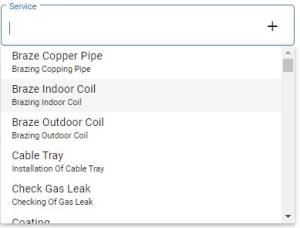
- Choosing Your Approach:
- If you prefer the On-Demand Approach, you can skip this step and proceed directly to Step 3.
- For detailed guidance on setting up master data, refer to the Master Data Setup Guide.

Step 4: Set Up Inventory
Want to save time? Try Chillhub’s Batch Import feature to get through this step much faster.
- Navigate to the Inventory Page: Go to Menu → Inventory → Inventory.
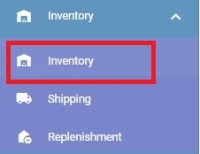
- Click the New button. A dialog will appear, allowing you to create an Inventory Item.
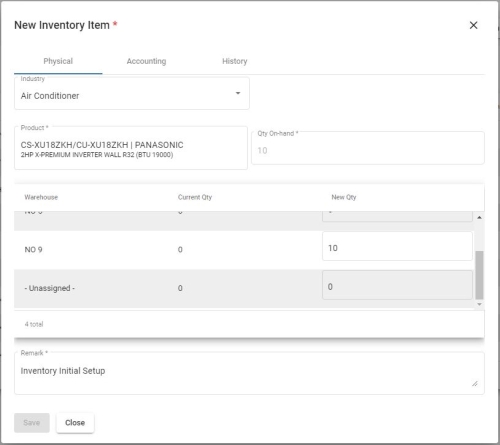
- Select the Industry to populate the Product Selection.
- Set Date preferably to a date before your financial period to indicate that this inventory adjustment occurred before your accounting records began, rather than today.
- Search and select the desired Product
- If the Product does not exist, click the icon to create it.
- Open the Physical Tab
- Input Warehouse Quantities (Physical Quantity):
- In the warehouse data table, enter the current quantity for each warehouse in the New Qty column.
- If no warehouse is listed, go to Settings to set them up.
- If you don't need to track quantities by warehouse, input the total quantity in the “- Unassigned -“ warehouse.
- The total physical quantity will be displayed under Qty on Hand.
- Go to the Accounting Tab
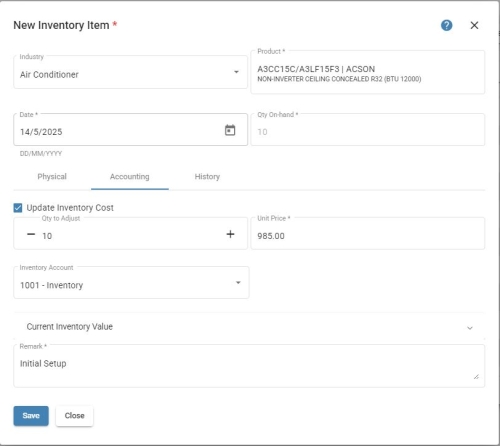
- The Qty to Adjust field should match the Qty On Hand (Physical Quantity) by default.
- Adjust the Qty to Adjust if discrepancies exist between accounting quantity and physical quantity (e.g., delivered products not yet invoiced)
- Uncheck Update Inventory Cost checkbox if you don’t want to update the accounting quantity.
- Input the cost per unit in the Unit Cost field.
- Enter a note, such as “Inventory Initial Setup,” in the Remark field.
- Click the Save button to save the inventory item.


Step 5: Set Up Pricing
Refer to this guide to learn how to configure Pricing data.
Step 6: Configure Chart of Accounts
Refer to this guide to review and update Chart of Accounts as needed.
Your system is now equipped with the settings, necessary master data, inventory quantities, inventory cost details, and pricing information. Enjoy using Chillhub!