Accounting & Financial Reports
Explore how to generate accounting and financial reports with Chillhub.
Before using any accounting features in Chillhub, please ensure you’ve set up your Chart of Accounts, Account Rules, and Financial Periods by following this guide.
Journal: Detailed record of a business transaction over a period, using a double-entry system
Journal
- Log in to Chillhub App.
- Navigate the Accounts Chart page by selecting Menu → Accounting → Journal

- The following options are located on the toolbar
- Search: Allows you to search for specific data
- Refresh: Updates the current view by reloading the data
- Export to Excel: Enables exporting the current view data to an Excel file.
- New: Creates a new Manual Journal Entry record in the system.
- Additional filter and action:
- Date Range: Choose the start and end dates to filter data accordingly.
- All accounts: Enable this to view data from all accounts within the selected date range.
- Filter by account: Select a specific account to filter the data. (Visible only when All Accounts is unchecked.)
- General Ledger Report: Create a general ledger report summarizing all journal transactions for the specified period.
- Data Table: (Note that some of these columns may be hidden in the row details)
- : Expand row to view more details.
- : Edit the related transaction (e.g., invoices, purchase orders, manual entries).
- Mobile View: expand row to access
- Date: The transaction date.
- Document Type: Indicates the type of document or transaction (e.g., Sales Invoice, Purchase Invoice).
- Document: The reference number or ID of the associated document.
- Account: The account involved in the transaction.
- Debit: The debit amount recorded for the transaction.
- Credit: The credit amount recorded for the transaction.
- Remark: Additional notes or comments related to the transaction.

Manual Journal Entry
- From the Journal Page, click the New button or select the icon on the Manual Entry row to open the Manual Journal entry dialog.

- Date: Select the date of the journal entry.
- Type: Specifies the transaction type associated with the journal entry (e.g., Sales Invoice, Payment, Expense, Inventory Adjustment, or Manual Entry).
- Ref. No.: A reference number to identify or link the journal entry to its source document.
- Entries: Add one or more debit/credit lines for the transaction:
- Account: Search and select the relevant account.
- Credit/Debit: Specify whether the amount is a credit or a debit.
- Amount: Enter the transaction amount.
- : Edit the selected entry.
- : Delete the entry.
- : Save changes (when in edit mode)
- : Cancel changes (when in edit mode)
- Total Credit: Displays the total credit amount entered.
- Total Debit: Displays the total debit amount entered.
- Amount validation:
- Both Total Credit and Total Debit must be greater than zero.
- Total Credit must equal Total Debit for the journal entry to be valid.
- Remark: Add a note or description for the journal entry.
- Creditor/Debtor: Associate the journal entry to a debtor or creditor, these entries will be included in Creditor/Debtor statement.
- Debtor/Creditor Entry Type: Choose how the entry relates to a debtor or creditor.
- None: No association to creditor nor debtor.
- Credit to Debtor (-): Decreases the Accounts Receivable for a debtor.
- Debit to Debtor (+): Increases the Accounts Receivable for a debtor.
- Credit to Creditor (-): Increases the Accounts Payable for a creditor.
- Debit to Creditor (-): Decreases the Accounts Payable for a creditor.
- Debtor: Search and select an existing customer. (Only visible when the entry is linked to a debtor.)
- Creditor: Search and select an existing supplier. (Only visible when the entry is linked to a creditor.)

General Ledger: Complete record of all journal entries organized by account.
General Ledger
- From the Journal Page, select the desired date range. You may also choose a specific account to filter the journal entries (optional).
- Click General Ledger Report to to generate the report based on the selected filters.

- Letterhead & Title: The report begins with your company’s letterhead, followed by the title “General Ledger” prominently displayed at the top.
- Date Range: Just below the title, the selected date range is clearly shown, indicating the reporting period.
- Account Hierarchy: Accounts are organized in a hierarchical structure:
- Grouped by Root Type (e.g., Assets, Liabilities, Revenue, Expenses)
- Followed by Parent Accounts and Sub-Accounts
- Proper indentation visually reflects the account levels
- Transaction Details: For each account, the report lists individual journal entries, showing:
- Date: The transaction date.
- Type: Indicates the type of document or transaction (e.g., Sales Invoice, Purchase Invoice).
- Document: The reference number or ID of the associated document.
- Account: The account involved in the transaction.
- Debit: The debit amount recorded for the transaction.
- Credit: The credit amount recorded for the transaction.
- Balance: The cumulative account balance after each transaction.
- Remark: Additional notes or comments related to the transaction.
Profit and Loss Statement
- Log in to Chillhub App.
- Navigate the Accounts Chart page by selecting Menu → Accounting → Reports
- Select Profit and Loss Statement as the Report Type
- Select Periodicity
- Calendar Month: Summarizes data for calendar month
- Calendar Quarter: Summarizes data for standard quarters (Q1: Jan-Mar, Q2: Apr-Jun, etc).
- Calendar Year: Summarizes data for the full calendar year.
- Financial Period: Summarizes data using custom financial period defined in the system.
- Use left/right arrow to navigate date range based on the selected periodicity, or manually adjust the Date Range.
- Click Generate Report to generate the Profit and Loss statement.

- The following options are located on the toolbar
- Search: Allows you to search for specific data
- Export to Excel: Enables exporting the current view data to an Excel file.
- View Report: Generates report that can be shared, printed, and downloaded in PDF format.
- Data Table:
- Account: Displays accounts grouped under Revenue, Cost of Goods Sold (COGS), and Expense, organized in a hierarchical structure.
- Revenue accounts: Income generated from sales or services.
- Accounts with Revenue root type.
- Cost of Goods Sold (COGS): Direct costs of producing, purchasing goods or delivering services.
- Account with Expense root type and Cost of Good Sold checked.
- Expense: Operating expenses incurred in daily business operations.
- Account with Expense root type and Cost of Good Sold unchecked.
- Total Amount: Displays the total income or expense for each corresponding account over the selected period, along with the calculated gross and net profits.
- Gross Profit: Revenue minus COGS; shows profit before expenses.
- Net Profit: Final profit after subtracting all expenses from revenue.
- Clicking View Report generates a document that looks like the following:


Balance Sheet: Shows assets, liabilities, and equity at a specific point in time.
Balance Sheet
- Log in to Chillhub App.
- Navigate the Accounts Chart page by selecting Menu → Accounting → Reports
- Select Balance Sheet as the Report Type.
- Choose the desired Date for the report.
- Click Generate Report to generate the Profit and Loss statement.
- Note: To generate a Balance Sheet, the Financial period and Opening Balances must be properly configured at the selected date.

- The following options are located on the toolbar
- Search: Allows you to search for specific data
- Export to Excel: Enables exporting the current view data to an Excel file.
- View Report: Generates report that can be shared, printed, and downloaded in PDF format.
- Data Table:
- Account: Displays accounts grouped under Assets, Liabilities, and Equity, organized in a hierarchical structure.
- Total Amount: Shows the balance of each account as of the selected date.
- Clicking View Report generates a document that looks like the following:


Trial Balance
- Log in to Chillhub App.
- Navigate the Accounts Chart page by selecting Menu → Accounting → Reports
- Select Trial Balance as the Report Type
- Select Periodicity
- Calendar Month: Summarizes data for calendar month
- Calendar Quarter: Summarizes data for standard quarters (Q1: Jan-Mar, Q2: Apr-Jun, etc).
- Calendar Year: Summarizes data for the full calendar year.
- Financial Period: Summarizes data using custom financial period defined in the system.
- Use left/right arrow to navigate date range based on the selected periodicity, or manually adjust the Date Range.
- Click Generate Report to generate the Trial Balance statement.

- The following options are located on the toolbar
- Search: Allows you to search for specific data
- Export to Excel: Enables exporting the current view data to an Excel file.
- View Report: Generates report that can be shared, printed, and downloaded in PDF format.
- Data Table:
- Account: Lists all accounts, organized in a hierarchical structure.
- Debit: Shows the total debit amount recorded for each account.
- Credit: Shows the total credit amount recorded for each account.
- Clicking View Report generates a document that looks like the following:


Cash Flow Statement
- Log in to Chillhub App.
- Navigate the Accounts Chart page by selecting Menu → Accounting → Reports
- Select Cash Flow Statement as the Report Type
- Select Periodicity
- Calendar Month: Summarizes data for calendar month
- Calendar Quarter: Summarizes data for standard quarters (Q1: Jan-Mar, Q2: Apr-Jun, etc).
- Calendar Year: Summarizes data for the full calendar year.
- Financial Period: Summarizes data using custom financial period defined in the system.
- Use left/right arrow to navigate date range based on the selected periodicity, or manually adjust the Date Range.
- Click Generate Report to generate the Cash Flow Statement statement.

- The following options are located on the toolbar
- Search: Allows you to search for specific data
- Export to Excel: Enables exporting the current view data to an Excel file.
- View Report: Generates report that can be shared, printed, and downloaded in PDF format.
- Data Table:
- Description: Lists cash flow activities grouped under operating, investing, and financing categories.
- Operating Activities: Cash flows from the core business operations, such as cash received from customers and cash paid for expenses like salaries, rent, and utilities.
- Net income: Total revenue minus all expenses.
- Changes in Working Capital: Increases or decreases in Current Assets and Liabilities.
- Investing Activities: Cash flows related to the purchase and sale of long-term assets and investments.
- Increases or decreases in Non-current Assets.
- Financing Activities: Cash flows from transactions with owners and lenders, such as issuing shares, borrowing loans, or repaying debts.
- Increases or decreases in Non-current Liabilities and Equity.
- Amount: Shows the cash inflow or outflow amount for each activity.
- Clicking View Report generates a document that looks like the following:


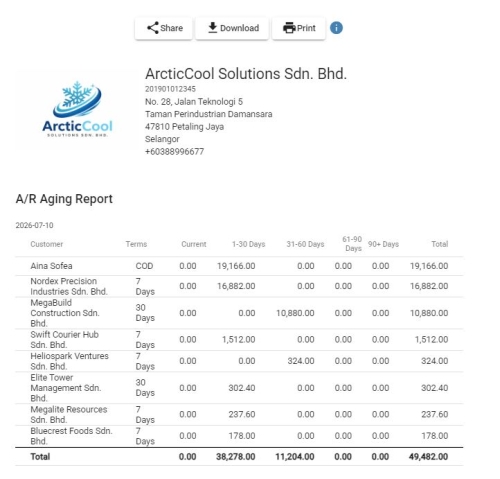
A/R Aging Report: Summarizes outstanding customer receivables by how overdue they are.
A/R Aging Report
- Log in to Chillhub App.
- Navigate the Accounts Chart page by selecting Menu → Accounting → Reports
- Select A/R Aging Report as the Report Type.
- Choose the As of Date for the report.
Overdue buckets are calculated based on each invoice's due date relative to this date. - Click Generate Report to generate the A/R Aging report.

- The following options are located on the toolbar
- Search: Allows you to search for specific data
- Export to Excel: Enables exporting the current view data to an Excel file.
- View Report: Generates report that can be shared, printed, and downloaded in PDF format.
- Data Table:
- Customer: The name of the customer with an outstanding balance.
- Term: The payment terms agreed with the customer.
- Current Balance: Outstanding balance that is not yet due, based on the invoice's payment terms.
- Overdue 1-30: Outstanding balance that is 1 to 30 days past its due date.
- Overdue 31-60: Outstanding balance that is 31 to 60 days past its due date.
- Overdue 61-90: Outstanding balance that is 61 to 90 days past its due date.
- Overdue 90+: Outstanding balance that is more than 90 days past its due date.
- Total Balance: The sum of all balances (current and overdue) for the customer.
- A Total row is shown at the bottom of the table, summarizing all columns across every customer.
- Clicking View Report generates a document that looks like the following:

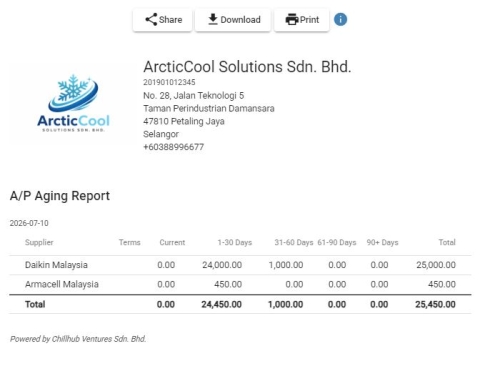
A/P Aging Report: Summarizes outstanding supplier payables by how overdue they are.
A/P Aging Report
- Log in to Chillhub App.
- Navigate the Accounts Chart page by selecting Menu → Accounting → Reports
- Select A/P Aging Report as the Report Type.
- Choose the As of Date for the report.
Overdue buckets are calculated based on each purchase invoice's due date relative to this date. - Click Generate Report to generate the A/P Aging report.

- The following options are located on the toolbar
- Search: Allows you to search for specific data
- Export to Excel: Enables exporting the current view data to an Excel file.
- View Report: Generates report that can be shared, printed, and downloaded in PDF format.
- Data Table:
- Supplier: The name of the supplier with an outstanding balance.
- Term: The payment terms agreed with the supplier.
- Current Balance: Outstanding balance that is not yet due, based on the purchase invoice's payment terms.
- Overdue 1-30: Outstanding balance that is 1 to 30 days past its due date.
- Overdue 31-60: Outstanding balance that is 31 to 60 days past its due date.
- Overdue 61-90: Outstanding balance that is 61 to 90 days past its due date.
- Overdue 90+: Outstanding balance that is more than 90 days past its due date.
- Total Balance: The sum of all balances (current and overdue) for the supplier.
- A Total row is shown at the bottom of the table, summarizing all columns across every supplier.
- Clicking View Report generates a document that looks like the following:

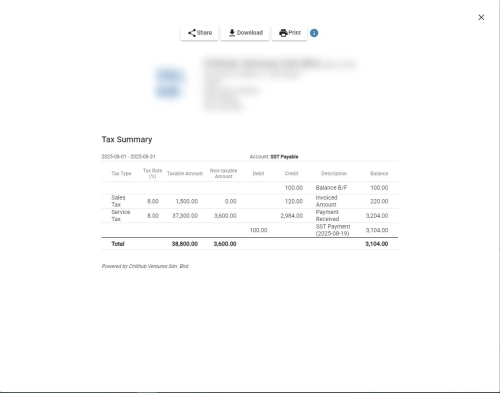
Tax Summary Report
Activate SST add-on in the subscription plan to enable this report
- Log in to Chillhub App.
- Navigate the Accounts Chart page by selecting Menu → Accounting → Reports
- Select Tax Summary as the Report Type
- Select Periodicity
- Calendar Month: Summarizes data for calendar month
- Calendar Quarter: Summarizes data for standard quarters (Q1: Jan-Mar, Q2: Apr-Jun, etc).
- Calendar Year: Summarizes data for the full calendar year.
- Financial Period: Summarizes data using custom financial period defined in the system.
- Use left/right arrow to navigate date range based on the selected periodicity, or manually adjust the Date Range.
- Account: Select an taxes payable/deferred account.
- Click Generate Report to generate the Tax Summary report.

- The following options are located on the toolbar
- Search: Allows you to search for specific data
- Export to Excel: Enables exporting the current view data to an Excel file.
- View Report: Generates report that can be shared, printed, and downloaded in PDF format.
- Data Table:
- Tax Type: The category of tax (e.g., Service Tax, Sales Tax).
- Tax Rate: The percentage applied to the taxable amount.
- Taxable Amount: The total value of transactions subject to tax.
- Non-taxable Amount: The total value of transactions not subject to tax.
- Debit: Tax amounts recorded as debit entries, reducing the tax liability (e.g., payment made to Customs)
- Credit: Tax amounts recorded as credit entries, increasing the tax liability (e.g., tax charged)
- Invoiced Service Tax is first recorded in the Service Tax Deferred Account and transferred to SST Payable Account upon payment; Sales Tax is recorded directly in SST Payable Account.
- Description: Notes explaining the change in tax liability.
- Balance: The tax liability account balance at period end.
- Clicking View Report generates a document that looks like the following:

Debtors/Creditors
- Log in to Chillhub App.
- Navigate the Accounts Chart page by selecting Menu → Accounting → Debtor or Creditor

- The following options are located on the toolbar
- Search: Allows you to search for specific data
- Refresh: Updates the current view by reloading the data
- Export to Excel: Enables exporting the current view data to an Excel file.
- Data Table:
- : View detailed statement for the selected debtor or creditor.
- Creditor or Debtor: Name of the customer (debtor) or supplier (creditor).
- Balance: Outstanding amount owed by or to the party.

Debtor/Creditor Statement
- Clicking icon on a Debtor or Creditor row opens a statement dialog showing detailed transactions for the selected customer or supplier.

- Creditor: The selected supplier whose statement is being viewed.
- Debtor: The selected customer whose statement is being viewed.
- From & To: Date range to filter the transactions.
- Fetch Data: Loads transactions for the selected creditor within the chosen date range.
- Export to Excel: Downloads the statement as an Excel file.
- Data Table for Creditor:
- : View or edit the linked document or transaction.
- Date: The date of the transaction.
- Payment Status: Shows the current payment status of the purchase invoice (e.g., paid, not paid, partial).
- Document: Purchase Invoice number, or Expense reference.
- Description: Indicates the transaction type (e.g., Invoice, Payment, Expense, Credit/Debit Note, or Manual Entry).
- Ref. No.: Displays the payment reference number or credit/debit note number.
- Debit: Amount reduced from the supplier’s payable balance.
- Credit: Amount added to the supplier’s payable balance.
- Data Table for Debtor:
- : View or edit the linked document or transaction.
- Date: The date of the transaction.
- Payment Status: Shows the current payment status of the sales invoice (e.g., paid, not paid, partial).
- Document: Sales invoice number.
- Description: Indicates the transaction type (e.g., Invoice, Payment, Credit/Debit Note, or Manual Entry).
- Ref. No.: Displays the payment reference number or credit/debit note number.
- Debit: Amount added to the customer’s receivable balance.
- Credit: Amount reduced from the customer’s receivable balance.
- View Document: Opens the full document in a separate view.
- Transactions with the same Description, Date and Reference Number (e.g. payment ref. no. or credit/debit note no.) are grouped together.
- Aging Summary is displayed at the bottom of the statement to show outstanding amounts grouped by how long they’ve been overdue.


Bank Reconciliation : Matches internal transaction records with bank statements to ensure accuracy
Bank Reconciliation
- Log in to Chillhub App.
- Navigate the Accounts Chart page by selecting Menu → Accounting → Bank Reconciliation
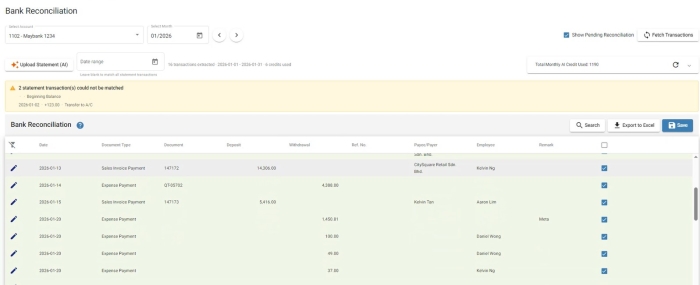
- Select a Cash Accounts
- Choose the Month or use the arrows to navigate.
- Uncheck “Show Pending Reconciliation” to include already reconciled transactions.
- Click Fetch Transactions button to load bank/cash transactions of the selected account.
- The following options are located on the toolbar
- Search: Allows you to search for specific data
- Export to Excel: Enables exporting the current view data to an Excel file.
- Save: Save updates made during the reconciliation process.
- Data Table:
- : View or edit the linked document or transaction.
- Date: The date of the transaction.
- Document Type: Indicates the type of transaction. (e.g. Sales Invoice Payment, Purchase Invoice Payment, etc)
- Document: The reference number or ID of the associated document. (e.g. Invoice No.)
- Deposit: Money received into the account (inflows).
- Withdrawal: Money paid out from the account (outflows).
- Ref. No.: Payment reference number.
- Employee: The employee associated with the payment.
- Payee/Payer: Party who made or received the payment.
- Remark: Any additional notes related to the transaction.
- Checkbox indicates whether the transaction has been reconciled.
- Manually tick the checkboxes for matched transactions, then click Save to complete the bank reconciliation.
- Upload Statement (AI): Instead of manually ticking each transaction, you can let AI match your bank statement against fetched transactions automatically.
- Upload Statement: Upload a bank statement file (PDF or image).
Requires a selected Cash Account, fetched transactions, the AI add-on to be enabled, and edit permission.- Note: Requires the AI Productivity add-on. Each request consume AI Credits dynamically based on the amount of content extracted. You can track your remaining free balance at the top right
- PDFs longer than 10 pages will prompt you to select a page range
- Date Range: After the statement is uploaded, optionally set a date range to narrow which fetched transactions AI should attempt to match against.
- AI will automatically tick the checkboxes for transactions it successfully matches between your statement and the fetched transaction list.
- If one transaction on that date has the exact same amount, it's matched right away.
- Otherwise, transactions on that date with the same Reference No. (or Payee/Payer, if no reference) are grouped together and matched if their combined amount equals the statement amount.
- Unmatched Transactions Warning: If any statement transactions could not be matched to a fetched transaction, a warning banner is shown listing each one, including its date, deposit/withdrawal amount, description, and reference number, so you can review and reconcile them manually.
- Review the AI-matched (and any manually ticked) transactions, then click Save to complete the bank reconciliation.
