Scheduling
Please refer to the guide below for detailed information on scheduling module.
Manage Schedules
- Log on to Chillhub App
- Navigate the Sales Order page by selecting Menu → Scheduling
- The following options are located on the toolbar
- Search: Allows you to search for specific data
- Refresh: Updates the current view by reloading the data
- Export to Excel: Enables exporting the current view data to an Excel file.
- New: Creates a new entry or record in the system.
- New Appointment: Schedule a new job.
- New Daily Note: Add a daily note for reference
- Additional Filter and Navigation :
- : Jump to a specific date.
- : Move to the previous week (desktop) or previous day (mobile).
- : Move to the next week (desktop) or next day (mobile).
- Date : Shows the selected weekly range (desktop) or a single date (mobile).
- Filter by Team : Narrow down schedules based on selected assigned teams (and team categories).

- Show Free Slots: Displays the available time slots of the selected teams on the calendar.

- More actions:
- Customer Form : Generate a self-filled form for customers to submit their details.
- Open Requests : View incoming customer form submissions.
- A badge indicates the number of open submissions.
- Take one of the following actions on open requests:
- Schedule
- Creating invoice
- Create sales order
- Create quotation
- Saving customer details.
- Views Tab:
- Calendar: Displays scheduled jobs in a weekly calendar view (desktop) or a daily calendar view (mobile).

- Total: Shows the total amount to be received or earned for the selected day. (Hidden from users without Invoice access)
- Notes: Displays daily notes for quick reference.
- Events:
- Display time as Planned or Actual (Planned), completion status (✔), customer name, address, and contact details.
- : Indicates that the job has one or more attachments.
- Event color is determined by the assigned team color configured in user settings.
- Clicking on an event or note opens a context menu with the following options:
- : View and modify job or note details.
- : Remove the job or note details.
- : Opens a menu with additional options
- Copy: Create a copy of an existing job or note.
Notes: Amount will not be copied over - : Repeat: Create a recurring schedule based on the selected job or note.
- Schedule a new job by clicking or dragging in an empty time slot in the calendar area.
- Add new notes by clicking an empty space in the “Notes” section for the selected day.
- List: Presents scheduled jobs and daily notes in a structured data table format.

- : Expand row to view more details.
- : View and modify job or note details. (Mobile View: expand row to access)
- : Remove the job or note details.
- : Opens a menu with additional options
- Copy: Create a copy of an existing job or note.
Notes: Amount will not be copied over - : Repeat: Create a recurring schedule based on the selected job or note.
- Status: Shows the current status of the scheduled job (e.g., Pending, Completed, Cancelled)
- Pending: The scheduled job is awaiting completion.
- Started: The scheduled job is currently in progress.
- Completed: The scheduled job has been successfully completed.
- Cancelled: The scheduled job has been canceled.
- Date: Date of the job appointment
- Customer: The name of the customer associated with the scheduled job.
- Address: The location where the job will take place.
- City: The city of the job location.
- Contact No.: The customer's contact number.
- Terms: The payment terms agreed with the customer.
- External Code: External reference code used to link this customer to an external accounting system.
- Team: The assigned team responsible for the job.
- Employee: The employee assigned to the job.
- Tasks: The list of specific tasks to be performed.
- From: The Planned or Actual (Planned) starting time of the job.
- To: The Planned or Actual (Planned) ending time of the job.
- Invoice No.: The invoice number linked to this job.
- Sales Order No.: The sales order number associated with this job.
- Delivery Order No.: The delivery order number linked to this job.
- Job Completion Note No.: The job completion note number linked to this job.
- Amount: The total amount expected to be received or earned from the job. (Hidden from users without Invoice access)
- Remark: Any additional notes or comments related to the job.
- Attachment: Specifies whether the job has one or more attached files.


Job Appointment Form
- From Scheduling Page: Click the New button or selecting time slots in calendar area to create a new job appointment. To modify an existing sales order, click the Edit icon on the corresponding row in the data table or events in the calendar view.
- From Sales Order/Invoice Page: On the data table row, click the Options button to open a menu, then select Schedule to create or modify the corresponding scheduled job.
- Customer information: The customer details from the sales order will be copied over.
- If the job details differ from the billing information, update them accordingly.
- Invoice No. and Sales Order No.: These will be copied over automatically.
- By default, Auto Link Amount is enabled, and the Amount to Receive will match the invoice amount (or sales order amount).
- If the amount to receive on the scheduled date is different, uncheck Auto Link Amount and enter the correct amount manually.
- Delivery Order No.: If a delivery note exists with a matching delivery date, it will be automatically linked to the scheduled job.
- Job Completion Note No.: If a job completion note exists with a matching service date, it will be automatically linked to the scheduled job.
Job Appointment: Create or edit scheduled job details
Job Appointment Form

- Status: Shows the current status of the scheduled job (e.g., Pending, Completed, Cancelled)
- Date: Date of the job appointment
- Planned:
- From: The planned start time of the job.
- To: The planned end time of the job.
- : Opens a calendar popup to view existing scheduled time slots, allowing users to select and apply an available time.

- Actual:
- From: The actual start time of the job.
- To: The actual end time of the job.
- Industry Filter: Used to filter task selection
- Tasks: Select one or multiple tasks to be performed.
- Team: The assigned team responsible for the job.
- Employee: The employee assigned to the job.
- Customer
- Billing: The customer's billing information, used for invoicing
- : Opens the AI Extract Profile dialog to automatically populate customer information using AI.
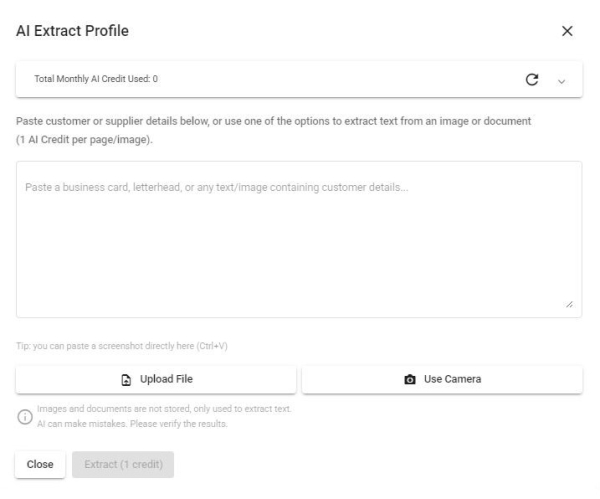
- Paste Text: Paste unstructured text (e.g. an email signature, business card text, or free-form notes) into the text box, then click Extract.
- Paste Image: Paste a screenshot or copied image (e.g. from a chat app or email) directly into the text box using Ctrl+V — useful when the customer's information is shared as a picture rather than text.
- Upload File: Upload an image or PDF (e.g. a business card, letterhead, or invoice). PDFs longer than 5 pages will prompt you to select a page range.
- Use Camera: Capture a photo directly using your device's camera (e.g. to scan a physical business card).
- AI will identify and extract fields such as Name, Contact No., Person in Charge, Email, ID Type & No., Tax Identification No., SST Registration No., and Address (including Postcode, City, State, Country).
- Note: To use AI Extract Profile, make sure to activate the AI Productivity add-on in your subscription. Each text request, image, or PDF page costs 1 credit. Your current usage and remaining free balance are always visible at the top of this dialog.
- : Scan Taxpayer QR code from MyInvois App to automatically populate customer information.
- Customer: The name of the customer to whom the invoice is issued.
- Contact No.: The contact number for the billing customer.
- : Click to open WhatsApp chat with the customer.
- Person in Charge: The main contact person at the billing customer’s company.
- Email Address: The billing customer's email address.
- Individual/Company Toggle: A button to switch between Individual and Company modes, ensuring only the relevant customer information is displayed.
- ID Type: The type of identification used, such as NRIC, BRN (Business Registration Number), Passport No., or Army ID.
- ID No.: The customer identification number corresponding to the selected ID type.
Note: For BRN, use the new format (e.g., 202001234567). - SST Reg. No.: The Sales and Services Tax (SST) registration number of the customer (Only required for SST-registrant)
E.g. A01-2345-67891012 - Tax Identification No.: Tax Identification Number (TIN) of the customer. Company TIN is mandatory, while the Default TIN can be used for individuals.
E.g. C2584563222- : Retrieve Tax Identification Number (TIN) from the MyInvois System using the corresponding ID Number (e.g., NRIC, BRN).
- Use Default TIN: Use EI00000000010 as Tax Identification Number.
- Address: Billing address of the customer
- : Click to open the location in Google Maps.
- Postcode: Billing postcode of the customer
- City: Billing city of the customer
- State: Billing state of the customer
- Country: Billing country of the customer
- Terms: The payment terms agreed with the customer (Configure options at Settings → Terms)
- External Code: External reference code used to link this customer to an external accounting system.
- Only available when integration with an external accounting system is enabled. Please contact Chillhub for more information.
- Select «New» to automatically create a new customer record in the external accounting system.
- A Default Debtor Code can be configured in the system settings and selected for general or walk-in customers.
- Clear all button: Reset all entered customer billing info and start fresh.
- Delivery: The customer's delivery information, used for shipping or service (Only required to fill in the fields differ from billing info)
- Different from billing info: Enable this option if any customer's delivery details are not the same as their billing information.
- : Opens the AI Extract Profile dialog to automatically populate customer information using AI.
- Paste Text: Paste unstructured text (e.g. an email signature, business card text, or free-form notes) into the text box, then click Extract.
- Paste Image: Paste a screenshot or copied image (e.g. from a chat app or email) directly into the text box using Ctrl+V — useful when the customer's information is shared as a picture rather than text.
- Upload File: Upload an image or PDF (e.g. a business card, letterhead, or invoice). PDFs longer than 5 pages will prompt you to select a page range.
- Use Camera: Capture a photo directly using your device's camera (e.g. to scan a physical business card).
- AI will identify and extract fields such as Name, Contact No., Person in Charge, Email, ID Type & No., Tax Identification No., SST Registration No., and Address (including Postcode, City, State, Country).
- Note: To use AI Extract Profile, make sure to activate the AI Productivity add-on in your subscription. Each text request, image, or PDF page costs 1 credit. Your current usage and remaining free balance are always visible at the top of this dialog.
- Customer: The name of the customer to whom goods and services are delivered.
- Contact No.: The contact number for the delivery customer.
- : Click to open WhatsApp chat with the customer.
- Person in Charge: The main contact person at the delivery customer’s company.
- Email Address: The delivery customer's email address.
- Address: Delivery address of the customer
- : Click to open the location in Google Maps.
- Postcode: Delivery postcode of the customer
- City: Delivery city of the customer
- State: Delivery state of the customer
- Country: Delivery country of the customer
- Clear all button: Reset all entered customer delivery info and start fresh.
- More Information
- Sales Order No.: The sales order number linked to the job. (Auto populated if job is scheduled from sales order)
- Create/Edit Sales Order: Open sales order form to create/edit a sales order linked to the job. (Customer details will be copied as billing information)
- Invoice No.: The invoice number linked to the job. (Auto populated if job is scheduled from invoice)
- Create/Edit Invoice: Open invoice form to create/edit a invoice linked to the job. (Customer details will be copied as billing information)
- Amount to Receive: The total amount expected to be received or earned from the job.
- Auto Link Amount: Automatically links the invoice or sales order amount as the Amount to Receive.
- (Hidden from users without Invoice access)
- Delivery Note No: The delivery note associated to the job.
- Automatically populated if a delivery note exists from the associated invoice or sales order with a matching delivery date.
- View Document: Opens the delivery note for viewing and allows the customer to sign digitally.
- Job Completion Note No: The job completion note associated to the job.
- Automatically populated if a job completion note exists from the associated invoice or sales order with a matching service date.
- : Create a job completion note in the associated invoice or sales order.
- : Edit the job completion note in the associated invoice or sales order.
- View Document: Opens the job completion note for viewing and allows the customer to sign digitally.
- Remark: Any additional notes or comments related to the job.


Form Actions
- Save & Close: Save and close the form
- Save as Pending: Save changes while keeping the job in pending status.
- Save as Started: Save changes and mark the job as started.
- Save and Complete: Save changes and mark the job as completed.
- Save and Cancel: Save changes and cancel the job.
- Save & Continue: Save and leave the form open
- Save as Pending: Save changes while keeping the job in pending status.
- Save as Started: Save changes and mark the job as started.
- Save and Complete: Save changes and mark the job as completed.
- Save and Cancel: Save changes and cancel the job.
- Upload Media: Upload photos or files related to the job. (e.g. site photos, documents, or supporting images)
Daily Note: Create or edit daily note for reference
Daily Note Form

- Date: The date associated with the daily note.
- Remark: Notes or comments for reference on the selected date.
Recurrence: Set Up a Recurring Schedule
Recurrence Form

- Start Date: The start date of the recurrence. Default: Uses the selected job’s appointment date.
- End Date: The end date of the recurrence. Note: The recurrence period cannot exceed one year.
- Frequency: Defines how often the job is repeated. Choose from:
- Daily – The job repeats every day.
- Weekly – The job repeats on selected days of the week.
- Weekday toggle buttons will be displayed for selection.
- Monthly – The job repeats on selected days of the month.
- Day-of-month toggle buttons will be displayed for selection.
- Every: Specifies the interval between recurrences based on the selected frequency. Example: Every 2 weeks, Every 3 months.
- Generate Jobs: Generates job instances based on the defined recurrence rules and displays them in the preview table.
- Generated Jobs Preview: (Note that some of these columns may be hidden in the row details)
- : Expand row to view more details.
- : Modify job or note details
- : Remove the job or note from the generated list.
- Submit status: Indicates the submission state of each generated job.
- Unmodified: The job has not been edited since generation.
- Pending: The job is pending submission.
- Success: The job was successfully created/updated.
- Error: The job failed to be created due to an error.
- Date: Date of the job appointment
- Team: The assigned team responsible for the job.
- Remark: Any additional notes or comments related to the job.
- Attachment: Specifies whether the job has one or more attached files.
- Submit error: Displays the error message if job submission fails.
- From: The Planned or Actual (Planned) starting time of the job.
- To: The Planned or Actual (Planned) ending time of the job.
- Tasks: The list of tasks to be performed for the job.
- Save: Button to create or update the jobs displayed in the preview table.