Quotation
Please refer to the guide below for detailed information on quotation module.
Manage Quotation: Overview of the quotation list including their statuses
Manage Quotation
- Log on to Chillhub App
- Navigate the Quotation page by selecting Menu → Quotation

- The following options are located on the toolbar
- Search: Allows you to search for specific data
- Refresh: Updates the current view by reloading the data
- Export to Excel: Enables exporting the current view data to an Excel file.
- New: Creates a new entry or record in the system.
- Additional Filter & Summary:
- Select Month: a calendar selector that allows you to filter quotations by a specific month.
- Monthly Total: Displays a summarized breakdown of the quotation amounts for the selected month
- Total Incl. Tax: The total quotation amount, including SST taxes.
- Total Excl. Tax: The total amount before SST taxes are applied.
- Total Tax: The total SST tax amount for all quotations during the selected month.
- Data Table: (Note that some of these columns may be hidden in the row details)
- : Expand row to view more details.
- : Modify quotation details (Mobile View: expand row to access)
- : Duplicate an existing quotation (Mobile View: expand row to access)
- : Opens a menu with additional options
- : Create a new sales order or modify an existing one for the quotation.
- : Create a new invoice or modify an existing one for the quotation.
- Quotation No.: The unique identifier for the quotation
- Status: Shows the current status of the quotation (e.g., Pending, Accepted, Rejected)
- Draft: The quotation is still being prepared and has not been sent to the customer.
- Pending: The quotation is awaiting customer response.
- Accepted: The quotation has been approved by the customer.
If an invoice or sales order is generated from the quotation, its status will automatically change to “Accepted.” - Rejected: The quotation has been rejected by the customer
- Date: The date the quotation was placed
- Customer: The name of the customer associated with the quotation.
- Address: Shows the address of the customer.
- City: The city where the customer is located.
- Contact No.: The contact number for the customer.
- Term: The payment term agreed with the customer.
- External Code: External reference code used to link this customer to an external accounting system.
- Remark: Any additional notes or remarks related to the quotation.
- Purchase Order No.: The purchase order number related to the quotation.
- Sales Order No.: The sales order number associated with the quotation.
- Invoice No.: The invoice number associated with the quotation.
- Employee: The name of the employee (e.g. salespersons) responsible for the quotation.
- Total Incl. Tax: The total amount of the quotation, including applicable taxes.
- Total Tax Amount: The total amount of SST tax applied to the quotation.
- Total Excl. Tax: The total amount of the quotation, excluding taxes.
- Currency: The currency code used for this document (e.g., MYR, USD).

Quotation Form
General: Key details such as quotation number, date and customer information
General

- Status: Shows the current status of the quotation (e.g., Pending, Accepted, Rejected)
- Employee: The name of the employee (e.g. salespersons) responsible for the quotation.
- Quotation No.: The unique identifier for the quotation. Automatically generated by the system.
If quotation number conflict occurs, click the Refresh icon to generate a new quotation number - Date: The date the quotation was issued.
- Customer
- Billing: The customer's billing information, used for invoicing
- : Opens the AI Extract Profile dialog to automatically populate customer information using AI.
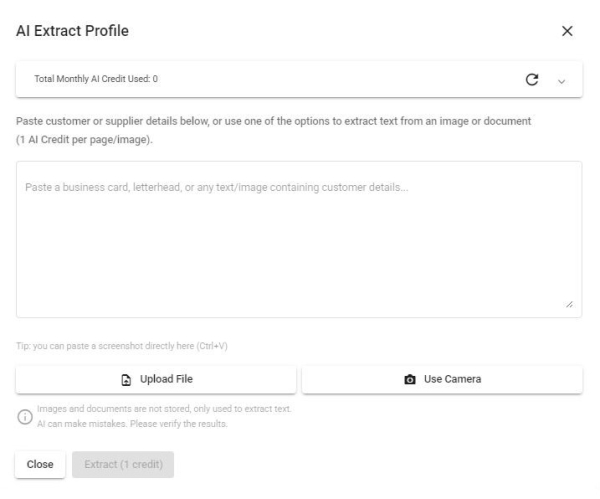
- Paste Text: Paste unstructured text (e.g. an email signature, business card text, or free-form notes) into the text box, then click Extract.
- Paste Image: Paste a screenshot or copied image (e.g. from a chat app or email) directly into the text box using Ctrl+V — useful when the customer's information is shared as a picture rather than text.
- Upload File: Upload an image or PDF (e.g. a business card, letterhead, or invoice). PDFs longer than 5 pages will prompt you to select a page range.
- Use Camera: Capture a photo directly using your device's camera (e.g. to scan a physical business card).
- AI will identify and extract fields such as Name, Contact No., Person in Charge, Email, ID Type & No., Tax Identification No., SST Registration No., and Address (including Postcode, City, State, Country).
- Note: To use AI Extract Profile, make sure to activate the AI Productivity add-on in your subscription. Each text request, image, or PDF page costs 1 credit. Your current usage and remaining free balance are always visible at the top of this dialog.
- : Scan Taxpayer QR code from MyInvois App to automatically populate customer information.
- Customer: The name of the customer to whom the invoice is issued.
- Contact No.: The contact number for the billing customer.
- : Click to open WhatsApp chat with the customer.
- Person in Charge: The main contact person at the billing customer’s company.
- Email Address: The billing customer's email address.
- Individual/Company Toggle: A button to switch between Individual and Company modes, ensuring only the relevant customer information is displayed.
- ID Type: The type of identification used, such as NRIC, BRN (Business Registration Number), Passport No., or Army ID.
- ID No.: The customer identification number corresponding to the selected ID type.
Note: For BRN, use the new format (e.g., 202001234567). - SST Reg. No.: The Sales and Services Tax (SST) registration number of the customer (Only required for SST-registrant)
E.g. A01-2345-67891012 - Tax Identification No.: Tax Identification Number (TIN) of the customer. Company TIN is mandatory, while the Default TIN can be used for individuals.
E.g. C2584563222- : Retrieve Tax Identification Number (TIN) from the MyInvois System using the corresponding ID Number (e.g., NRIC, BRN).
- Use Default TIN: Use EI00000000010 as Tax Identification Number.
- Address: Billing address of the customer
- : Click to open the location in Google Maps.
- Postcode: Billing postcode of the customer
- City: Billing city of the customer
- State: Billing state of the customer
- Country: Billing country of the customer
- Terms: The payment terms agreed with the customer (Configure options at Settings → Terms)
- External Code: External reference code used to link this customer to an external accounting system.
- Only available when integration with an external accounting system is enabled. Please contact Chillhub for more information.
- Select «New» to automatically create a new customer record in the external accounting system.
- A Default Debtor Code can be configured in the system settings and selected for general or walk-in customers.
- Clear all button: Reset all entered customer billing info and start fresh.
- Delivery: The customer's delivery information, used for shipping or service (Only required to fill in the fields differ from billing info)
- Different from billing info: Enable this option if any customer's delivery details are not the same as their billing information.
- : Opens the AI Extract Profile dialog to automatically populate customer information using AI.
- Paste Text: Paste unstructured text (e.g. an email signature, business card text, or free-form notes) into the text box, then click Extract.
- Paste Image: Paste a screenshot or copied image (e.g. from a chat app or email) directly into the text box using Ctrl+V — useful when the customer's information is shared as a picture rather than text.
- Upload File: Upload an image or PDF (e.g. a business card, letterhead, or invoice). PDFs longer than 5 pages will prompt you to select a page range.
- Use Camera: Capture a photo directly using your device's camera (e.g. to scan a physical business card).
- AI will identify and extract fields such as Name, Contact No., Person in Charge, Email, ID Type & No., Tax Identification No., SST Registration No., and Address (including Postcode, City, State, Country).
- Note: To use AI Extract Profile, make sure to activate the AI Productivity add-on in your subscription. Each text request, image, or PDF page costs 1 credit. Your current usage and remaining free balance are always visible at the top of this dialog.
- Customer: The name of the customer to whom goods and services are delivered.
- Contact No.: The contact number for the delivery customer.
- : Click to open WhatsApp chat with the customer.
- Person in Charge: The main contact person at the delivery customer’s company.
- Email Address: The delivery customer's email address.
- Address: Delivery address of the customer
- : Click to open the location in Google Maps.
- Postcode: Delivery postcode of the customer
- City: Delivery city of the customer
- State: Delivery state of the customer
- Country: Delivery country of the customer
- Clear all button: Reset all entered customer delivery info and start fresh.
- More Information
- Industrial Classification (MSIC) Code: Select the appropriate MSIC Code, which is required for e-Invoice submission.
Defaulted to default MSIC Code in the Profile- Click the “X” on the right to clear the textbox.
- Type in keywords related to your business type (e.g., “retail,” “manufacturing,” “information technology”) to narrow down your options.
- Choose the most relevant MSIC Code that best describes your business activities.
- Visit Official MSIC Code System to find out more MSIC code details
- P/O No.: The Purchase Order number associated with the quotation.
- Sales Order No.: The quotation number related to the sales order. (Auto populated if sales order is created from quotation)
- : View or edit the linked quotation.
- Invoice No.: The invoice number linked to the sales order. (Auto populated if invoice is created from quotation)

* : View or edit the linked invoice.
- SST Tax Rate: The applicable Sales and Services Tax (SST) rate for the quotation. Defaulted to default SST Rate in Settings
- SST Tax Type: The applicable Sales and Services Tax (SST) type for the sales order. Defaulted to default SST Type in Settings
- Currency: The currency code used for this document (e.g., MYR, USD).
- Activate Multi-currency add-on in the subscription plan to select foreign currencies.
- Exchange Rate: The rate used to convert the document currency to the base currency (Available only when a foreign currency is selected).
- : Fetches the exchange rate from Bank Negara Malaysia, with fallback to other providers if not available.
- Remark: Any additional notes or remarks related to the quotation.
Items: Adding and managing products or services in the quotation.
Items

- The following options are located on the toolbar
- Currency Button Toggles: Switch the displayed amounts between local and foreign currencies (Available only when a foreign currency is selected).
- New: Add a new item.
- Add More:
- New Section: Create a new section within the quotation. Subtotals will be calculated for each section individually.
- New Discount: Add a discount to the quotation.
- Data Table: (Note that some of these columns may be hidden in the row details)
- : Expand row to view more details. (available only in Mobile View)
- : Modify item details (Mobile View: expand row to access)
- : Delete item (Mobile View: expand row to access)
- : More options
- Add Indent: Indent the selected item
- Remove Indent: Outdent the selected item
- Move Up: Shift the selected item or section upward in the list
- Move Down: Shift the selected item or section downward in the list.
- Item: The name the item being sold
- Qty: The quantity of the item being sold
- UOM: The unit of measurement for the item (e.g., pcs, kg, liters)
- Unit Price: The price per unit of the item.
- Subtotal: The total price for the item, calculated as Qty × Unit Price.
- Footer:
- Total Excl. Tax: The total amount of the quotation, excluding tax.
- Total Incl. Tax: The total amount of the quotation, including tax.
- Total SST: The Sales and Services Tax (SST) amount applied to the quotation.
- Item Form

- Industry: Select the relevant industry to populate the options for Product, Product Type, and Service dropdowns
- Type: Choose the type of item being sold: Product, Product Type, Service, or Custom
- Product / Service / Product Type / Custom: Select the specific item based on the chosen type.
- Product: Represents specific goods, items and parts offered by the organization
- : Click to view the current inventory level for this product.
- Product Type: Used when specific products are unknown or not tracked in the system.
- Service: Additional charges or non-physical offerings that your company provides
- Custom: Enter free text to define an item not covered by the predefined master data.
- Qty: The quantity of the item.
- UOM: The unit of measurement for the item (e.g., pcs, kg, liters)
- For items with UOM conversion, an alternate UOM can be selected to ensure accurate inventory tracking.
- Unit Price: The price per unit of the item.
- When a foreign currency is selected, Unit Price is shown in both local and foreign currencies.
- Updates to Unit Price in either currency will automatically recalculate the corresponding value using the exchange rate.
- Non-billable consumption: Materials are deducted from stock for the job but are not charged to the customer or shown on their document.
- Applicable only when item type is Product
- Price cannot be set when this option is enabled.
- Subtotal: The total price for the item, calculated as Qty × Unit Price.
- When a foreign currency is selected, Subtotal is shown in both local and foreign currencies.
- SST Taxable: Indicates whether the item is subject to Sales and Services Tax (SST).
- Activate SST add-on in the subscription plan to enable the SST feature.
- Tax Amount: The SST amount applied to the item.
- When a foreign currency is selected, Tax Amount is shown in both local and foreign currencies.
- Total Incl. Tax: The total price for the item, including SST, calculated as Subtotal + Tax Amount.
- When a foreign currency is selected, Total Incl. Tax is shown in both local and foreign currencies.
- Section Form

- Section: The name or description of the section. (Subtotals will be calculated for each section)
- Discount Form

- Discount Description: A brief description of the discount being applied.
- Discount Amount: The monetary value of the discount applied to the item or quotation.
- When a foreign currency is selected, Discount Amount is shown in both local and foreign currencies.
- Updates to Discount Amount in either currency will automatically recalculate the corresponding value using the exchange rate.
- SST Taxable: Indicates whether the discount is subject to Sales and Services Tax (SST).
- Tax Amount: The SST amount applied to the discount.
- When a foreign currency is selected, Tax Amount is shown in both local and foreign currencies.
- Total Incl. Tax: The total discount for the item, including SST, calculated as Discount Amount + Tax Amount.
- When a foreign currency is selected, Total Incl. Tax is shown in both local and foreign currencies.


Document: Edit the header and footer templates of the quotation.
Document

- Subject: The subject line of the quotation. Defaulted to the quotation subject configured in Settings.
- Footer: The footer section of the quotation. Defaulted to the quotation footer configured in Settings.
- Select Template: Choose an alternative template for your Subject/Footer. (Configure additional templates in Settings ➔ More Templates.)
Form Actions: Available actions such as saving, canceling, sharing or printing the quotation
Form Actions
- View Document: View, print and share quotation document.
- As Document: Generates a quotation document that can be shared, printed, and downloaded in PDF format.
- As Text Messages: Instantly convert the quotation into a text message format for quick sharing with customers.
- Save & Close: Save and close the form
- Save as Draft: Save the quotation in draft status.
- Save as Pending: Mark the quotation as awaiting customer response.
- Save as Accepted: Confirm the quotation as approved by the customer.
- Save as Rejected: Mark the quotation as declined by the customer.
- Save & Continue: Save and leave the form open
- Save as Draft: Save the quotation in draft status.
- Save as Pending: Mark the quotation as awaiting customer response.
- Save as Accepted: Confirm the quotation as approved by the customer.
- Save as Rejected: Mark the quotation as declined by the customer.