Invoice
Please refer to the guide below for detailed information on invoice module.
Manage Invoice: Overview of the invoice list including their statuses
Manage Invoice
- Log on to Chillhub App
- Navigate the Invoice page by selecting Menu → Invoice

- The following options are located on the toolbar
- Search: Allows you to search for specific data
- Refresh: Updates the current view by reloading the data
- Export to Excel: Enables exporting the current view data to an Excel file.
- New: Creates a new entry or record in the system.
- Additional Filter, Actions & Summary:
- Select Month: a calendar selector that allows you to filter invoices by a specific month.
- Monthly Summary: Displays a summarized breakdown of the invoiced amounts and statuses for the selected month
- Total Incl. Tax: The total invoice amount, including SST taxes.
- Total Excl. Tax: The total amount before SST taxes are applied.
- Total Tax: The total SST tax amount for all invoices during the selected month.
- e-Invoice Error: Number of invoices with e-Invoice submission errors.
- e-Invoice Submitted: Number of invoices submitted for e-Invoice, with unknown validation status.
- Cost Status Shortage: Number of invoices with cost shortages (i.e., unable to calculate cost of goods sold).
- More actions:
- Update Cost Status: Recalculates the cost for invoices marked with a Shortage cost status within the current month.
- Sync e-Invoice Status: Retrieves the latest validation status for invoices with a Submitted e-Invoice status within the current month.
- Customer Form : Generate a self-filled form for customers to submit their details.
- Open Requests : View incoming customer form submissions.
- A badge indicates the number of open submissions.
- Take one of the following actions on open requests:
- Schedule
- Creating invoice
- Create sales order
- Create quotation
- Saving customer details.
- Data Table: (Note that some of these columns may be hidden in the row details)
- : Expand row to view more details.
- : Modify invoice details (Mobile View: expand row to access)
- : Duplicate an existing invoice (Mobile View: expand row to access)
Notes: Payment, delivery, adjustment details will not be copied over - : Opens a menu with additional options
- : Assign teams and schedule the service or delivery date on the calendar.
- : Ship the delivery items on the invoice from the selected warehouses
- : Check the e-Invoice status at MyInvois Portal
- Invoice No.: The unique identifier for the invoice
- Status: Shows the current status of the invoice (e.g., Draft, Issued, Cancelled)
- Draft: The invoice has been created but not yet finalized or sent.
- Issued: The invoice has been finalized and sent to the customer. The cost will be calculated, and the invoice will be posted to the MyInvois system. At this stage, the invoice details are locked and cannot be edited. Adjustments must be made through a credit or debit note.
- Cancelled: The invoice has been canceled and the cancellation will be posted to the MyInvois system. The invoice cannot be edited, and all associated costs, payments, and deliveries will be reversed
- Date: The date the invoice was issued.
- Customer: The name of the customer associated with the invoice.
- Address: Shows the address of the customer.
- City: The city where the customer is located.
- Contact No.: The contact number for the customer.
- Term: The payment terms agreed with the customer.
- External Code: External reference code used to link this customer to an external accounting system.
- Remark: Any additional notes or remarks related to the invoice.
- Purchase Order No.: The purchase order number related to the invoice.
- Quotation No.: Displays the quotation number related to the invoice.
- Sales Order No.: The sales order number associated with the invoice.
- Employee: The name of the employee (e.g. salespersons) responsible for the invoice.
- Total Incl. Tax: The total amount of the invoice, including applicable taxes and adjustments.
- Total Tax Amount: The total amount of SST tax applied to the invoice.
- Adjustment Amount Incl. Tax: The total amount of adjustments (credit/debit notes), including tax.
- Adjustment Tax: The total tax amount of the adjustments (credit/debit notes).
- Total Excl. Tax: The total invoiced and adjustment amount of the invoice, excluding taxes.
- Paid: Total amount paid toward the invoice.
- Currency: The currency code used for this document (e.g., MYR, USD).
- Delivery Status: Displays the current delivery status (e.g., None, Partial, Shipped) of the invoice.
- N/A: No deliverable items is included.
- None: No delivery has been initiated or scheduled.
- Partial: Some items have been delivered or planned for delivery, but not all.
- Ready: All items are ready for delivery but have not yet been dispatched.
- Shipped: The delivery has been completed and shipped to the customer.
- Return: Some items are scheduled for return but pending.
- Cancelled: The invoice has been canceled, any associated delivery and shipping have been reversed.
- Job Completion Status:
- N/A: No service items is included.
- None: No job completion note recorded yet.
- Partial: Some services completed, others pending.
- Completed: All service items are fully completed.
- Cancelled: The invoice has been canceled.
- Payment Status: Indicates the payment status (e.g., Not Paid, Partial, Paid, Overpaid) of the invoice.
- Not Paid: No payment has been made towards the invoice.
- Partial: A partial payment has been made, but the full amount is still outstanding.
- Paid: The full amount of the invoice has been paid.
- Overpaid: The amount paid exceeds the invoice total.
- Cancelled: The invoice has been canceled, so payment has been reversed.
- Scheduled: Indicates whether the invoice has been scheduled for service and delivery.
- Cost Status: Shows the status of the cost calculation (e.g., Pending, Calculated, Shortage) for the invoice.
- None: Invoice is either still in draft or contains only services with no product sales
- Calculated: The cost for the invoice has been calculated.
- Shortage: There was an issue with the calculation, and a shortage in the cost has been identified.
A shortage occurs when purchase invoices have not been entered into the system, preventing the system from calculating the cost based on the purchase price. Once the cost is available in the system, the invoice must be saved again (Save Only) to recalculate the cost - Cancelled: The invoice has been canceled. Any cost associated to the invoice will be reverted
- e-Invoice Status: Indicates the current submission status of the e-Invoice or its related adjustment (credit/debit note)
- Not Submitted: The e-Invoice has not yet been submitted.
- Scheduled: The consolidated e-Invoice is scheduled to be submitted on a future date.
- Submitted: The e-Invoice has been successfully submitted but is awaiting validation.
- Valid: The e-Invoice has been processed and validated as correct.
- Cancelled: The e-Invoice has been canceled.
- Error: There was an issue with the e-Invoice submission or validation, resulting in an error.
- e-Invoice ID: Displays the Submission UUID for the e-Invoice.
- Accounting Sync Status: Current synchronization status of the invoice with the external accounting system.
- Pending – The invoice or payments are queued for synchronization.
- Synced – The invoice and payments have been successfully synchronized.
- Cancelling – A cancellation request is being processed.
- Cancelled – The invoice and payments has been successfully cancelled in the external accounting system.
- Error – Synchronization failed due to an error.
- Not Synced – The invoice has not been sent for synchronization.

Invoice Form
Accessing Invoice Form: How to create or edit invoice in the system from different entry points
Accessing Invoice Form
- From Invoice Page: Click the New button to create a new invoice. To modify an existing invoice, click the Edit icon on the corresponding row in the data table.
- From Sales Order Page: On the data table row, click the Options button to open a menu, then select Create/Edit Invoice to create or modify the corresponding invoice.
- When invoice is created from a sales order
- All sales order information, items, payments, deliveries will be copied over to the invoice.
- Sales order becomes non-editable. Further changes shall be made directly on the invoice.
- If only partial items are invoiced, you must split the sales order first.
- From Quotation Page: On the data table row, click the Options button to open a menu, then select Create/Edit Invoice to create or modify the corresponding invoice.
- All quotation information, items will be copied over to the invoice.
- From Scheduling Form: Create or edit the scheduled job, go to More Information panel, click New Invoice or Edit Invoice button to create or modify the corresponding invoice.
- Customer information copied over to the invoice. If the job details differ from the billing information, update them accordingly.
- From Shipping Page: On the data table row for an invoice shipping record, click the Edit button to modify the corresponding invoice.
General: Key details such as invoice number, date and customer information
General

- Status: Shows the current status of the invoice (e.g., Draft, Issued, Cancelled)
- Employee: The name of the employee (e.g. salespersons) responsible for the invoice.
- Invoice No.: The unique identifier for the invoice. Automatically generated by the system.
If an invoice number conflict occurs, click the Refresh icon to generate a new invoice number - Date: The date the invoice was issued.
- Customer
- Anonymous Sales:
- A sales transaction where customer details are not known (e.g. walk in purchases). By enabling this option, this invoice will be submitted as consolidated e-Invoice.
- A consolidated e-Invoice will be automatically submitted 7 days after this option is selected and the invoice is marked as Issued.
- Within this 7-day period, you may uncheck the consolidated and anonymous flags and update customer information if the customer later requests an individual e-Invoice.
- Billing: The customer's billing information, used for invoicing
- : Opens the AI Extract Profile dialog to automatically populate customer information using AI.
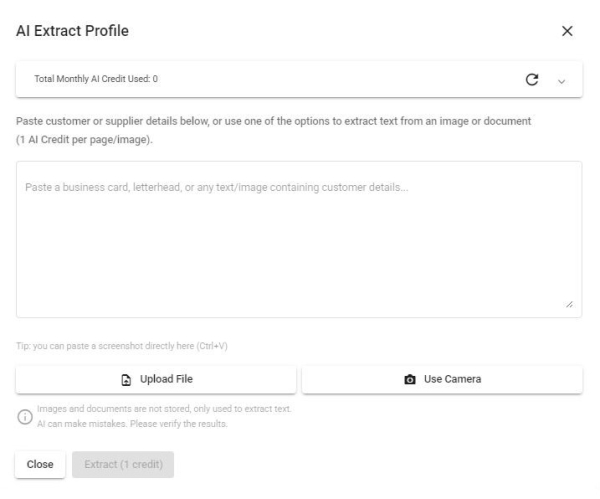
- Paste Text: Paste unstructured text (e.g. an email signature, business card text, or free-form notes) into the text box, then click Extract.
- Paste Image: Paste a screenshot or copied image (e.g. from a chat app or email) directly into the text box using Ctrl+V — useful when the customer's information is shared as a picture rather than text.
- Upload File: Upload an image or PDF (e.g. a business card, letterhead, or invoice). PDFs longer than 5 pages will prompt you to select a page range.
- Use Camera: Capture a photo directly using your device's camera (e.g. to scan a physical business card).
- AI will identify and extract fields such as Name, Contact No., Person in Charge, Email, ID Type & No., Tax Identification No., SST Registration No., and Address (including Postcode, City, State, Country).
- Note: To use AI Extract Profile, make sure to activate the AI Productivity add-on in your subscription. Each text request, image, or PDF page costs 1 credit. Your current usage and remaining free balance are always visible at the top of this dialog.
- : Scan Taxpayer QR code from MyInvois App to automatically populate customer information.
- Customer: The name of the customer to whom the invoice is issued.
- Contact No.: The contact number for the billing customer.
- : Click to open WhatsApp chat with the customer.
- Person in Charge: The main contact person at the billing customer’s company.
- Email Address: The billing customer's email address.
- Individual/Company Toggle: A button to switch between Individual and Company modes, ensuring only the relevant customer information is displayed.
- ID Type: The type of identification used, such as NRIC, BRN (Business Registration Number), Passport No., or Army ID.
- ID No.: The customer identification number corresponding to the selected ID type.
Note: For BRN, use the new format (e.g., 202001234567). - SST Reg. No.: The Sales and Services Tax (SST) registration number of the customer (Only required for SST-registrant)
E.g. A01-2345-67891012 - Tax Identification No.: Tax Identification Number (TIN) of the customer. Company TIN is mandatory, while the Default TIN can be used for individuals.
E.g. C2584563222- : Retrieve Tax Identification Number (TIN) from the MyInvois System using the corresponding ID Number (e.g., NRIC, BRN).
- Use Default TIN: Use EI00000000010 as Tax Identification Number.
- Address: Billing address of the customer
- : Click to open the location in Google Maps.
- Postcode: Billing postcode of the customer
- City: Billing city of the customer
- State: Billing state of the customer
- Country: Billing country of the customer
- Terms: The payment terms agreed with the customer (Configure options at Settings → Terms)
- External Code: External reference code used to link this customer to an external accounting system.
- Only available when integration with an external accounting system is enabled. Please contact Chillhub for more information.
- Select «New» to automatically create a new customer record in the external accounting system.
- A Default Debtor Code can be configured in the system settings and selected for general or walk-in customers.
- Clear all button: Reset all entered customer billing info and start fresh.
- Delivery: The customer's delivery information, used for shipping or service (Only required to fill in the fields differ from billing info)
- Different from billing info: Enable this option if any customer's delivery details are not the same as their billing information.
- : Opens the AI Extract Profile dialog to automatically populate customer information using AI.
- Paste Text: Paste unstructured text (e.g. an email signature, business card text, or free-form notes) into the text box, then click Extract.
- Paste Image: Paste a screenshot or copied image (e.g. from a chat app or email) directly into the text box using Ctrl+V — useful when the customer's information is shared as a picture rather than text.
- Upload File: Upload an image or PDF (e.g. a business card, letterhead, or invoice). PDFs longer than 5 pages will prompt you to select a page range.
- Use Camera: Capture a photo directly using your device's camera (e.g. to scan a physical business card).
- AI will identify and extract fields such as Name, Contact No., Person in Charge, Email, ID Type & No., Tax Identification No., SST Registration No., and Address (including Postcode, City, State, Country).
- Note: To use AI Extract Profile, make sure to activate the AI Productivity add-on in your subscription. Each text request, image, or PDF page costs 1 credit. Your current usage and remaining free balance are always visible at the top of this dialog.
- Customer: The name of the customer to whom goods and services are delivered.
- Contact No.: The contact number for the delivery customer.
- : Click to open WhatsApp chat with the customer.
- Person in Charge: The main contact person at the delivery customer’s company.
- Email Address: The delivery customer's email address.
- Address: Delivery address of the customer
- : Click to open the location in Google Maps.
- Postcode: Delivery postcode of the customer
- City: Delivery city of the customer
- State: Delivery state of the customer
- Country: Delivery country of the customer
- Clear all button: Reset all entered customer delivery info and start fresh.
- LHDN e-Invoice
- Skip e-Invoice Submission: Bypass e-Invoice submission for specific transaction. Useful in scenarios where the buyer is responsible for issuing a self-billed e-Invoice (e.g. such as e-Commerce transactions)
- Submit as Consolidated e-Invoice: This option can be used when customers do not require e-Invoice.
- A consolidated e-Invoice will be automatically submitted 7 days after this option is selected and the invoice is marked as Issued.
- Within this 7-day period, you may uncheck the consolidated and anonymous flags and update customer information if the customer later requests an individual e-Invoice.
- Industrial Classification (MSIC) Code: Select the appropriate MSIC Code, which is required for e-Invoice submission.
Defaulted to default MSIC Code in the Profile- Click the “X” on the right to clear the textbox.
- Type in keywords related to your business type (e.g., “retail,” “manufacturing,” “information technology”) to narrow down your options.
- Choose the most relevant MSIC Code that best describes your business activities.
- Visit Official MSIC Code System to find out more MSIC code details
- e-Invoice Status: The current status of the e-Invoice submission
- e-Invoice ID: Displays the Submission UUID for the e-Invoice.
- e-Invoice Error Message: Displays the error message of e-Invoice submission or validation
- Re-submit: A button to re-submit the e-Invoice after making corrections for any submission or validation errors.
- Submit Now: Immediately submit a consolidated e-Invoice that is otherwise scheduled for future submission.
- Check e-Invoice Status: Retrieve the latest status of the e-Invoice submission and open the MyInvois portal page to display the submission details.
- e-Invoice is submitted upon invoice is issued
- More Information
- P/O No.: The Purchase Order number associated with the invoice.
- Quotation No.: The quotation number related to the invoice. (Auto populated if invoice is created from quotation)
- : View or edit the linked quotation.
- Sales Order No.: The Sales Order number linked to the invoice. (Auto populated if invoice is created from sales order)
- : View or edit the linked sales order.
- SST Tax Rate: The applicable Sales and Services Tax (SST) rate for the invoice. Defaulted to default SST Rate in Settings
- SST Tax Type: The applicable Sales and Services Tax (SST) type for the invoice. Defaulted to default SST Type in Settings
- Currency: The currency code used for this document (e.g., MYR, USD).
- Activate Multi-currency add-on in the subscription plan to select foreign currencies.
- Exchange Rate: The rate used to convert the document currency to the base currency (Available only when a foreign currency is selected).
- : Fetches the exchange rate from Bank Negara Malaysia, with fallback to other providers if not available.
- Accounting: Assign accounts for the invoice. By default, accounts are determined based on Account Charts > Account Rules
- Accounts Receivable Account: Tracks outstanding payments from customers.
- SST Payable Account: Records Service Tax or Sales Tax that is already due.
- Service Tax Deferred Account: Records Service Tax invoiced but not yet due until payment is received.
- Accounting Integration:
- Only available when integration with an external accounting system is enabled. Please contact Chillhub for more information.
- Accounting Sync Status: Displays the current synchronization status of the invoice with the external accounting system.
- Pending – The invoice is queued for synchronization.
- Synced – The invoice has been successfully synchronized.
- Cancelling – A cancellation request is being processed.
- Cancelled – The invoice has been successfully cancelled in the external accounting system.
- Error – Synchronization failed due to an error.
- Not Synced – The invoice has not been sent for synchronization.
- Accounting Sync Timestamp: Shows the date and time when the invoice was last synchronized with the external accounting system.
- Accounting Sync Error: Displays the error message returned by the external accounting system, if synchronization fails.
- Retry Sync: Button to retry synchronization for invoices that failed.
- These fields are repeated in a separate section for invoice payment synchronization with the external accounting system.
- Remark: Any additional notes or remarks related to the invoice.

Items: Adding and managing products or services in the invoice.
Items

- The following options are located on the toolbar
- Currency Button Toggles: Switch the displayed amounts between local and foreign currencies (Available only when a foreign currency is selected).
- New: Add a new item.
- Add More:
- New Section: Create a new section within the invoice. Subtotals will be calculated for each section individually.
- New Discount: Add a discount to the invoice.
- Data Table: (Note that some of these columns may be hidden in the row details)
- : Expand row to view more details. (available only in Mobile View)
- : Modify item details (Mobile View: expand row to access)
- : Delete item (Mobile View: expand row to access)
- : More options
- Add Indent: Indent the selected item
- Remove Indent: Outdent the selected item
- Move Up: Shift the selected item or section upward in the list
- Move Down: Shift the selected item or section downward in the list.
- Item: The name the item being invoiced
- Qty: The quantity of the item being purchased
- UOM: The unit of measurement for the item (e.g., pcs, kg, liters)
- Unit Price: The price per unit of the item.
- Subtotal: The total price for the item, calculated as Qty × Unit Price.
- Footer:
- Total Excl. Tax: The total amount of the invoice, excluding tax.
- Total Incl. Tax: The total amount of the invoice, including tax.
- Total SST: The Sales and Services Tax (SST) amount applied to the invoice.
- Item Form

- Industry: Select the relevant industry to populate the options for Product, Product Type, and Service dropdowns
- Type: Choose the type of item being invoiced: Product, Product Type, Service, or Custom
- Product / Service / Product Type / Custom: Select the specific item based on the chosen type.
- Product: Represents specific goods, items and parts offered by the organization
- : Click to view the current inventory level for this product.
- Product Type: Used when specific products are unknown or not tracked in the system.
- Service: Additional charges or non-physical offerings that your company provides
- Custom: Enter free text to define an item not covered by the predefined master data.
- Qty: The quantity of the item.
- UOM: The unit of measurement for the item (e.g., pcs, kg, liters)
- For items with UOM conversion, an alternate UOM can be selected to ensure accurate inventory tracking.
- Non-billable consumption: Materials are deducted from stock for the job but are not charged to the customer or shown on their document.
- Applicable only when item type is Product
- Price cannot be set when this option is enabled.
- Unit Price: The price per unit of the item.
- When a foreign currency is selected, Unit Price is shown in both local and foreign currencies.
- Updates to Unit Price in either currency will automatically recalculate the corresponding value using the exchange rate.
- Subtotal: The total price for the item, calculated as Qty × Unit Price.
- When a foreign currency is selected, Subtotal is shown in both local and foreign currencies.
- SST Taxable: Indicates whether the item is subject to Sales and Services Tax (SST).
- Activate SST add-on in the subscription plan to enable the SST feature.
- Tax Amount: The SST amount applied to the item.
- When a foreign currency is selected, Tax Amount is shown in both local and foreign currencies.
- Total Incl. Tax: The total price for the item, including SST, calculated as Subtotal + Tax Amount.
- When a foreign currency is selected, Total Incl. Tax is shown in both local and foreign currencies.
- Cost: Displays the cost price details for the product item
- Qty: The quantity of the product item associated with the cost.
- Unit Price: The cost per unit of the product item.
Cost is determined according to the FIFO (First In, First Out) method when the sales invoice is issued. Please ensure that there are enough purchase invoice items for the same product to support accurate cost calculation.
- Accounting: Assign accounts for the selected goods or services. By default, accounts are determined based on Account Charts > Account Rules
- Revenue Account: Records income from sales of goods or services.
- Section Form

- Section: The name or description of the section. (Subtotals will be calculated for each section)
- Discount Form

- Discount Description: A brief description of the discount being applied.
- Discount Amount: The monetary value of the discount applied to the item or invoice.
- When a foreign currency is selected, Discount Amount is shown in both local and foreign currencies.
- Updates to Discount Amount in either currency will automatically recalculate the corresponding value using the exchange rate.
- SST Taxable: Indicates whether the discount is subject to Sales and Services Tax (SST).
- Tax Amount: The SST amount applied to the discount.
- When a foreign currency is selected, Tax Amount is shown in both local and foreign currencies.
- Total Incl. Tax: The total discount for the item, including SST, calculated as Discount Amount + Tax Amount.
- When a foreign currency is selected, Total Incl. Tax is shown in both local and foreign currencies.
- Accounting: Assign accounts for the selected goods or services. By default, accounts are determined based on Account Charts > Account Rules
- Revenue Account: Records income from sales of goods or services.


Delivery: Specify delivery details and the warehouse for stock deduction.
Delivery

- The following options are located on the toolbar
- Delivery Status: Displays the current delivery status (e.g., None, Partial, Shipped) of the invoice.
- N/A: No deliverable items is included.
- None: No delivery has been initiated or scheduled.
- Partial: Some items have been delivered or planned for delivery, but not all.
- Ready: All items are ready for delivery but have not yet been dispatched.
- Return: Some items are scheduled for return but pending.
- Shipped: The delivery has been completed and shipped to the customer.
- Cancelled: The invoice has been canceled, any associated delivery and shipping have been reversed.
- New: Add a new delivery note.
- Add More:
- New Return Note: Create a new return note.
- Data Table: (Note that some of these columns may be hidden in the row details)
- : Expand row to view more details. (available only in Mobile View)
- : Modify delivery/return note details (Mobile View: expand row to access)
- : Delete delivery/return note (Mobile View: expand row to access)
- Delivery/Return Note No. :The unique identifier for the delivery/return note
- Delivery Date: The date when the goods were delivered/returned.
- Remark: Any additional notes or comments related to the delivery/return
- Ship: Button to edit shipping information for the delivery items. (Button is disabled if there are unsaved delivery order changes).
- Delivery/Return Form


- Delivery/Return Note No. :The unique identifier for the delivery/return note. Automatically generated by the system.
- Delivery/Return Date: The date when the goods were delivered/returned.
- Data table for Delivery Note
- : Click to view the current inventory level for this product.
- Product: The specific item or product being delivered.
- Balance: The remaining quantity of the product yet to be delivered.
- Qty to Deliver: The quantity of the product to be delivered in this delivery note.
- Data table for Return Note
- : Click to view the current inventory level for this product.
- Product: The specific item or product being returned.
- Qty to Deliver: The total quantity delivered in other delivery notes.
- Qty to Return: The quantity of the product to be returned in this return note.
- Auto ship from/ Auto return to:
- Auto ship from: Automatically ships and deducts the quantity on hand from the selected warehouse. (Only at Delivery Note)
- Auto return to: Automatically return and increase the quantity on hand to the selected warehouse. (Only at Return Note)
- Alternatively, users can perform shipping on the shipping page, where multiple warehouse selections and serial number barcode scanning are supported
- Remark: Any additional notes or comments related to the delivery
- View Document: View, print and share delivery/return note document.
- Form Validations:
- The quantity to deliver cannot be less than the quantity already delivered (Shipped).
- The quantity to return cannot be less than the quantity already returned (Shipped).
- At least one item must be marked for delivery.
- The quantity to deliver cannot exceed the invoiced quantity.
- The quantity to return cannot exceed the quantity to deliver.


Job Completion: Records the progress and completion status of the services linked to the invoice.
Job Completion

- The following options are located on the toolbar
- Job Completion Status: Displays the current job completion status (e.g., None, Partial, Completed) of the invoice.
- N/A: No service items is included.
- None: No job completion note recorded yet.
- Partial: Some services completed, others pending.
- Completed: All service items are fully completed.
- Cancelled: The invoice has been canceled.
- New: Add a new Job Completion Note.
- Data Table: (Note that some of these columns may be hidden in the row details)
- : Expand row to view more details. (available only in Mobile View)
- : Modify job completion note details (Mobile View: expand row to access)
- : Delete job completion note (Mobile View: expand row to access)
- Job Completion Note No. :The unique identifier for the job completion note
- Service Date: The date when the services were delivered.
- Remark: Any additional notes or comments related to the services.
- Job Completion Note Form

- Job Completion Note No. :The unique identifier for the job completion note. Automatically generated by the system.
- Service Date: The date when the services were delivered.
- Data table for Job Completion Note
- Service: The specific services being delivered.
- Balance: The remaining quantity of the services yet to be delivered.
- Additional Notes: Optional remarks or details about the service outcome, observations, or other relevant information included in the document.
- Insert Image button: Opens a dialog to upload or select an image (e.g. site photos) and insert it into the editor at the cursor position.
- Remark: Any additional notes or comments related to the job completion note.
- View Document: View, print and share job completion note document.
- Form Validations:
- At least one item must be marked for delivery.
- The quantity to deliver cannot exceed the invoiced quantity.

Adjustment: Manage credit and debit notes for invoice modifications.
Adjustment

- The following options are located on the toolbar
- Currency Button Toggles: Switch the displayed amounts between local and foreign currencies (Available only when a foreign currency is selected).
- New: Add a new credit/debit note.
- Data Table: (Note that some of these columns may be hidden in the row details)
- : Expand row to view more details. (available only in Mobile View)
- : Modify credit/debit note details (Mobile View: expand row to access)
- Credit/Debit Note No: The unique identifier for the credit or debit note associated with the invoice
- Status: The status of the credit or debit note (e.g., Draft, Issued, Cancelled).
- Date: The date when the credit or debit note was issued.
- Amount: The total value of the credit or debit note.
- Description: A brief description or reason for the credit or debit note.
- e-Invoice Status: The current status of the e-Invoice submission for the credit or debit note (e.g., Submitted, Valid, Error).
- Footer:
- Adjustment Amt Excl. Tax: The amount of the adjustment made to the invoice, excluding tax.
- Adjustment Amt Incl. Tax: The total adjustment amount, including tax.
- Adjustment SST: The Sales and Services Tax (SST) amount applied to the adjustment.
- Adjustment Form

- Status: The status of the credit or debit note (e.g., Draft, Issued, Cancelled).
- Credit/Debit Toggle: Allows switching between a credit note and a debit note based on the adjustment type.
- Credit/Debit Note No.: The unique identifier for the credit or debit note. Automatically generated by the system.
- Date: The date when the credit or debit note was issued.
- Description: A brief explanation or reason for issuing the credit or debit note.
- Non-taxable Amount: The portion of the adjustment that is not subject to tax.
- When a foreign currency is selected, Non-taxable Amount is shown in both local and foreign currencies.
- Updates to Non-taxable Amount in either currency will automatically recalculate the corresponding value using the exchange rate.
- Taxable Amount: The portion of the adjustment that is subject to tax.
- When a foreign currency is selected, Taxable Amount is shown in both local and foreign currencies.
- Updates to Taxable Amount in either currency will automatically recalculate the corresponding value using the exchange rate.
- Exchange Rate: The rate used to convert the document currency to the base currency (Available only when a foreign currency is selected).
- : Fetches the exchange rate from Bank Negara Malaysia, with fallback to other providers if not available.
- Currency Button Toggles: Switch the displayed amounts between local and foreign currencies (Available only when a foreign currency is selected).
- Original Total Excl. Tax: The original total amount of the invoice excluding tax before the adjustment.
- Adjustment Amount Excl. Tax: The adjustment amount applied to the invoice total, excluding tax.
- New Total Excl. Tax: The adjusted total amount of the invoice excluding tax after the adjustment.
- Original Total Tax: The original total tax amount for the invoice before the adjustment.
- Adjustment Tax: The tax amount associated with the adjustment.
- New Total Tax: The adjusted total tax amount for the invoice after the adjustment.
- Original Total Incl. Tax: The original total invoice amount, including tax, before the adjustment.
- Adjustment Amount Incl. Tax: The adjustment amount applied to the invoice total, including tax.
- New Total Incl. Tax: The adjusted total invoice amount, including tax, after the adjustment.
- LHDN e-Invoice
- Skip e-Invoice Submission: Bypass e-Invoice submission for specific transaction. Useful in scenarios where the buyer is responsible for issuing a self-billed e-Invoice (e.g. such as e-Commerce transactions)
- Submit as Refund Note: Option to submit a credit note as a Refund Note.
- According to LHDN guidelines: A Refund Note is issued by the supplier to confirm the return of payment to the buyer. It is applicable when there is a refund of monies to the buyer, such as in cases of overpayment or order cancellation.
- e-Invoice Status: The current status of the e-Invoice submission
- e-Invoice ID: Displays the Submission UUID for the e-Invoice.
- e-Invoice Error Message: Displays the error message of e-Invoice submission or validation
- Re-submit: A button to re-submit the e-Invoice after making corrections for any submission or validation errors.
- Submit Now: Immediately submit a consolidated e-Invoice that is otherwise scheduled for future submission.
- Check e-Invoice Status: Retrieve the latest status of the e-Invoice submission and open the MyInvois portal page to display the submission details.
- e-Invoice is submitted upon credit/debit note is issued
- Product Adjustment: Modify the invoiced quantity of a product to ensure accurate cost calculation.
- Product: The specific item or product being adjusted.
- Original Qty: Original invoiced quantity
- New Qty: New invoiced quantity
- Accounting: Assign accounts for the selected goods or services.
- Revenue Account: Records income from sales of goods or services.
- Accounting Integration:
- Only available when integration with an external accounting system is enabled. Please contact Chillhub for more information.
- Accounting Sync Status: Displays the current synchronization status of the credit/debit note with the external accounting system.
- Pending – The credit/debit note is queued for synchronization.
- Synced – The credit/debit note has been successfully synchronized.
- Cancelling – A cancellation request is being processed.
- Cancelled – The credit/debit note has been successfully cancelled in the external accounting system.
- Error – Synchronization failed due to an error.
- Not Synced – The credit/debit note has not been sent for synchronization.
- Accounting Sync Timestamp: Shows the date and time when the credit/debit note was last synchronized with the external accounting system.
- Accounting Sync Error: Displays the error message returned by the external accounting system, if synchronization fails.
- Retry Sync: Button to retry synchronization for invoices that failed.
- Save
- Save only: Save credit/debit note with current status
- Save and Issue: Save and finalize the credit/debit note, updating inventory and cost values, and posting it to the MyInvois system.
- Save and Cancel: Save and mark the credit/debit note as cancelled, updating inventory and cost values, and posting the cancellation to the MyInvois system.
- View Document: View, print and share credit/debit note document.

Payment: Recording invoice payments
Payment

- The following options are located on the toolbar
- Payment Status: Indicates the payment status (e.g., Not Paid, Partial, Paid, Overpaid) of the invoice.
- Not Paid: No payment has been made towards the invoice.
- Partial: A partial payment has been made, but the full amount is still outstanding.
- Paid: The full amount of the invoice has been paid.
- Overpaid: The amount paid exceeds the invoice total.
- Cancelled: The invoice has been canceled, so payment has been reversed.
- Currency Button Toggles: Switch the displayed amounts between local and foreign currencies (Available only when a foreign currency is selected).
- New: Add a new payment.
- Data Table: (Note that some of these columns may be hidden in the row details)
- : Expand row to view more details. (available only in Mobile View)
- : Modify payment details (Mobile View: expand row to access)
- Date: The date the payment was made.
- Method: The method used for the payment (e.g., Cash, Credit Card, Bank Transfer)
- Amount: The amount paid.
- Remark: Additional notes or comments regarding the payment.
- Footer:
- Total Billed: The total amount billed on the invoice and credit/debit notes.
- Total Paid: The total amount that has been paid.
- Amount Due: The outstanding balance that remains to be paid, calculated as Total Billed minus Total Paid.
- Payment Form

- Receipt No.: The unique identifier for the payment receipt. Automatically generated by the system.
- Method: Select the payment method used (Cash, Bank Transfer, Credit Card, Debit Card, E-Wallet, Cheque, Others)
- Date: Specify the date the payment was made.
- Refund: A checkbox to indicate that the payment is a refund. When selected, the system treats the transaction as a negative payment, deducting the amount from the total paid
- Amount: Enter the payment amount. For refunds, input the refunded amount.
- When a foreign currency is selected, Amount is shown in both local and foreign currencies.
- Updates to Amount in either currency will automatically recalculate the corresponding value using the exchange rate.
- Exchange Rate: The rate used to convert foreign currency payments to local currency (Available only when a foreign currency is selected).
- : Fetches the exchange rate from Bank Negara Malaysia, with fallback to other providers if not available.
- Updates to the payment exchange rate will automatically recalculate the foreign exchange gain or loss.
- Ref. No.: A reference number for the payment (e.g., transaction ID, cheque number).
- Foreign Exchange Gain/Loss: The gain or loss resulting from exchange rate differences between the invoice and the payment.
- Accounting: Assign accounts for the selected payment. By default, accounts are determined based on Account Charts > Account Rules and the selected payment method
- Cash Account: Specifies the bank or cash account where the payment is received.
- Unearned Revenue Accounts: Advance payment account where payment received before the invoice is issued (via sales order). This field is read-only.
- Foreign Exchange Gain/Loss Account: The account used to record any foreign exchange gain or loss arising from differences between invoice and payment exchange rates.
- Only available only when a foreign currency is selected.
- Remark: Optional field for additional notes or comments related to the payment.
- View Receipt: View, print and share receipt document.

Document: Edit the header and footer templates of the invoice.
Document

- Subject: The subject line of the invoice. Defaulted to the invoice subject configured in Settings.
- Footer: The footer section of the invoice. Defaulted to the invoice footer configured in Settings.\
- Select Template: Choose an alternative template for your Subject/Footer. (Configure additional templates in Settings ➔ More Templates.)
Form Actions: Available actions such as saving, canceling, sharing or printing the invoice
Form Actions
- View Document: View, print and share invoice document.
- Save & Close: Save and close the form
- Save & Continue: Save and leave the form open
- Save only: Save invoice with current status
- Save and Issue: Save and finalize the invoice,
- Cost calculation: The cost of each item is calculated based on the FIFO (First In, First Out) method, using purchase prices.
- e-Invoice Submission & Validation: The invoice is submitted to and validated by the LHDN MyInvois system. If validated successfully, a QR code is generated and displayed on the document.
- Once issued, invoice details, customer information, and item details become read-only. Any changes must be made through adjustments or cancellations.
- Save and Cancel: Save and cancel the invoice.
- Reversal: Cost, payments, delivery are automatically reverted.
- e-Invoice Cancellation: The invoice cancellation will be posted to LHDN MyInvois system.
- According to the e-Invoice guidelines (2.3.6), cancellations can only occur within 72 hours of validation. After this period, adjustments must be made through a debit or credit note instead of directly modifying the original e-Invoice
- Once cancelled, the invoice will become read-only.