This is an old revision of the document!
Inventory
Please refer to the guide below for detailed information on inventory module.
Manage Inventory: Overview of the current inventory levels, including stock availability.
Manage Inventory
- Log on to Chillhub App
- Navigate the Sales Order page by selecting Menu → Inventory → Inventory

- The following options are located on the toolbar
- Search: Allows you to search for specific data
- Refresh: Updates the current view by reloading the data
- Export to Excel: Enables exporting the current view data to an Excel file.
- New: Creates a new entry or record in the system.
- Additional Filter & Summary:
- Inventory Value: Displays the total monetary value of the available stock.
- Select Industry: Filter inventory based on the industry type.
- Select Warehouse: View inventory specific to a selected warehouse.
- Select Status: Filter inventory items by their status.
- *Ship: Items with pending outgoing shipments. Replenish: Items that pending incoming replenishment. Insufficient: Not enough available quantity after deducting customer-reserved stock. Negative: Physical stock is below zero. On Order: Items with open purchase orders not yet received. * Data Table: (Note that some of these columns may be hidden in the row details) * : Opens a menu with additional options * Adjust/Transfer: Manually adjust stock levels or transfer inventory between warehouses. * Ship: Process shipments based on sales delivery notes. * Replenish: Restock inventory using purchase delivery notes. * Pending Orders: View and manage orders awaiting delivery. * Status: * Ship: There are undelivered quantities based on sales delivery notes. * Replenish: There are incoming stock quantities based on purchase delivery notes that have not yet been received. * Insufficient: The available quantity is negative, meaning commitments exceed current stock. * Negative: The on-hand quantity has dropped below zero, indicating an inventory discrepancy. * Product: Name of the product * Description: Product description * Brand: Product brand * Qty On-hand: The actual physical quantity available in stock. * Qty Available: The stock quantity available for sale after deducting reserved or allocated stock. * Pending Shipment: The quantity allocated for outgoing shipments but not yet dispatched. * Pending Replenishment: The quantity expected to be restocked but not yet received. * Open P/O Qty: The quantity of the product currently on open purchase orders, awaiting fulfillment. == Pending Order List == * From the Inventory Page, click Pending Orders to view the list of pending orders.
 * This list displays sales orders and invoices without scheduled delivery, which impacts the Quantity Available.
* The following options are located on the toolbar
* Search: Allows you to search for specific data
* Refresh: Updates the current view by reloading the data
* Export to Excel: Enables exporting the current view data to an Excel file.
* Product: View pending orders for the selected product.
* Data Table: (Note that some of these columns may be hidden in the row details)
* Date: The date of the sales order or invoice.
* Invoice/Sales OrderNo.: The reference number of the invoice or sales order.
* Customer: The customer name associated with the order.
* Qty: The quantity ordered.
++
++++ Inventory Form: Manually adjust stock levels or transfer inventory between warehouses.
=== Inventory Form ===
* Industry: A filter for the Product field (visible only when adding a new inventory item)
* Product: The product being adjusted (read-only when editing).
* This list displays sales orders and invoices without scheduled delivery, which impacts the Quantity Available.
* The following options are located on the toolbar
* Search: Allows you to search for specific data
* Refresh: Updates the current view by reloading the data
* Export to Excel: Enables exporting the current view data to an Excel file.
* Product: View pending orders for the selected product.
* Data Table: (Note that some of these columns may be hidden in the row details)
* Date: The date of the sales order or invoice.
* Invoice/Sales OrderNo.: The reference number of the invoice or sales order.
* Customer: The customer name associated with the order.
* Qty: The quantity ordered.
++
++++ Inventory Form: Manually adjust stock levels or transfer inventory between warehouses.
=== Inventory Form ===
* Industry: A filter for the Product field (visible only when adding a new inventory item)
* Product: The product being adjusted (read-only when editing). * //When a product with existing inventory is selected, the user can switch to edit mode.// * **Date**: The date of the stock adjustment * **Qty On-hand**: The total quantity across all warehouses, automatically updated when warehouse quantities are modified (read-only). * **Remark**: Notes or reason for the stock adjustment.
== Physical ==
 * Warehouse Qty Data Table: Adjust item quantities for each warehouse
  * **Warehouse**: The warehouse name (read-only)
    * //Warehouses labeled **Unassigned** indicate quantities that are not assigned to any specific warehouse.//
  * **Current Qty**: The existing stock quantity in the warehouse (read-only)
  * **New Qty**: The updated stock quantity to be set.
  * {{mdi>calculator-variant?24}}: Click to calculate the new quantity based on the difference entered by the user.
== Accounting ==
 * Update Inventory Cost: Specify whether the inventory account value should be updated.
* Qty to Adjust: The quantity to be adjusted. (defaulted to Total New Qty - Total Current Qty from the Physical tab)
* Unit Price: The unit cost of the added quantities (read-only if the quantity to adjust is negative).
* Inventory Account: The inventory account assigned for the added quantities, defaulted to the inventory account configured in account rules (read-only if the quantity to adjust is negative).
* Current Inventory Value Data Table: Displays the current inventory account costing for stock that has not yet been sold.
* Update Inventory Cost: Specify whether the inventory account value should be updated.
* Qty to Adjust: The quantity to be adjusted. (defaulted to Total New Qty - Total Current Qty from the Physical tab)
* Unit Price: The unit cost of the added quantities (read-only if the quantity to adjust is negative).
* Inventory Account: The inventory account assigned for the added quantities, defaulted to the inventory account configured in account rules (read-only if the quantity to adjust is negative).
* Current Inventory Value Data Table: Displays the current inventory account costing for stock that has not yet been sold.
  * **Date**: The date when the inventory value was added or purchased.
  * **Qty**: The quantity added or purchased.
  * **Unit Price**: The unit cost of the purchased quantity.
  * **Footer**:
    * **Total Qty**: The total quantity recorded in the inventory account.
    * **Total Value**: The total value of the inventory account.
    * **Average Value**: The average cost per unit.
== History ==
++++ Inventory Adjustments: Overview of past ad-hoc inventory changes. === Inventory Adjustments === * Log on to Chillhub App * Navigate the Sales Order page by selecting Menu → Inventory → Adjustments
 * Date: The date of the stock adjustment
* Qty Adjustment: The quantity that was adjusted.
* Warehouse: Details of the warehouse where the quantity change occurred.
* Remark: Notes or reason for the stock adjustment.
* Date: The date of the stock adjustment
* Qty Adjustment: The quantity that was adjusted.
* Warehouse: Details of the warehouse where the quantity change occurred.
* Remark: Notes or reason for the stock adjustment.
 * The following options are located on the toolbar
  * {{mdi>magnify?24}} **Search**: Allows you to search for specific data
  * {{mdi>refresh?24}} **Refresh**: Updates the current view by reloading the data
  * {{mdi>download?24}} **Export to Excel**: Enables exporting the current view data to an Excel file.
  * {{mdi>plus?24}} **New**: Open **inventory form** to make new inventory adjustment.
* Additional Filter:
  * **Select Filter**: Choose from options
    * **Date**: View adjustment history for a specific date.
    * **Product**: View adjustment history for a specific product.
* Data Table: //(Note that some of these columns may be hidden in the row details)//
  * {{mdi>chevron-up?24}}: Expand row to view more details. (Only visible in Mobile View)
  * {{mdi>pencil?24}}: Modify shipment details (Mobile View: expand row to access)
  * **Product**: Name of the product which inventory is being adjusted.
  * **Qty Adjustment**: The quantity that was adjusted.
  * **Remark**: Notes or reason for the stock adjustment.\
  * **Warehouse**: Details of the warehouse where the quantity change occurred.
  * **Cost Qty Adjustment**: The quantity of inventory account to be adjusted.
  * **Unit Cost**: The cost per unit of the added inventory.
++++ Shipping: Edit outgoing shipment details based on sales delivery notes. == Accessing Shipping List ==
You can access shipping records from multiple pages within the system: - From Inventory Page: Click the Options button in the data table row, then select Ship to view shipping records for the selected product. - From Invoice Page: Click the Options button in the data table row, then select Ship to view shipping records for the selected invoice. - From Invoice Form: Navigate to the Delivery Tab and click Ship button to view shipping records for the selected invoice. - From Sales Order Page: Click the Options button in the data table row, then select Ship to view shipping records for the selected sales order. - From Sales Order Form: Navigate to the Delivery Tab and click Ship button to view shipping records for the selected sales order. - From Main Menu: Select Ship menu from the main menu to view shipping records for any specific dates. == Manage Shipping List ==
 * The following options are located on the toolbar
  * {{mdi>magnify?24}} **Search**: Allows you to search for specific data
  * {{mdi>refresh?24}} **Refresh**: Updates the current view by reloading the data
  * {{mdi>download?24}} **Export to Excel**: Enables exporting the current view data to an Excel file.
* Additional Filter:
  * **Select Filter**: Choose from options
    * **Delivery Date**: View shipping records for a specific date.
    * **Product**: View shipping records for a specific product.
    * **Invoice No.**: View shipping records for a specific invoice.
    * **Sales Order No.**: View shipping records for a specific sales order.
    * **All Pending**: View all records that are pending delivery.
* Data Table: //(Note that some of these columns may be hidden in the row details)//
  * {{mdi>chevron-up?24}}: Expand row to view more details.
  * {{mdi>pencil?24}}: Modify shipment details (Mobile View: expand row to access)
  * {{mdi>playlist-edit?24}}: Modify **invoice** or **sales order** details (Mobile View: expand row to access)
  * **Status**: Displays the current shipment status (e.g., Pending, Delivered, Exceeded, Cancelled)
    * {{mdi>clock-outline?24}} **Pending**: Delivery note items are created but have not yet been shipped from the warehouse.
    * {{mdi>check-circle?24}} **Delivered**: Delivery note items have been shipped from the warehouse.
    * {{mdi>minus-circle?24}} **Cancelled**: The invoice or sales order has been cancelled.
    * {{mdi>keyboard-return?24}} **Return**: Return note items are created but have not yet been returned to the warehouse.
  * **Delivery Date**: Scheduled date for shipment.
  * **Product**: Item being shipped.
  * **Qty to Deliver**: Quantity planned for delivery.
  * **Qty Delivered**: Quantity that has been shipped.
  * **Warehouse Detail**: Quantity breakdown specifying the warehouses from which the shipment was dispatched.
  * **Customer**: Customer Name
  * **Address**: Customer Address
  * **City**: Customer City
  * **Delivery Note No.**: Unique identifier for the delivery order.
  * **Invoice/Sales Order No.**: Associated invoice or sales order number.
== Ship Item Form ==
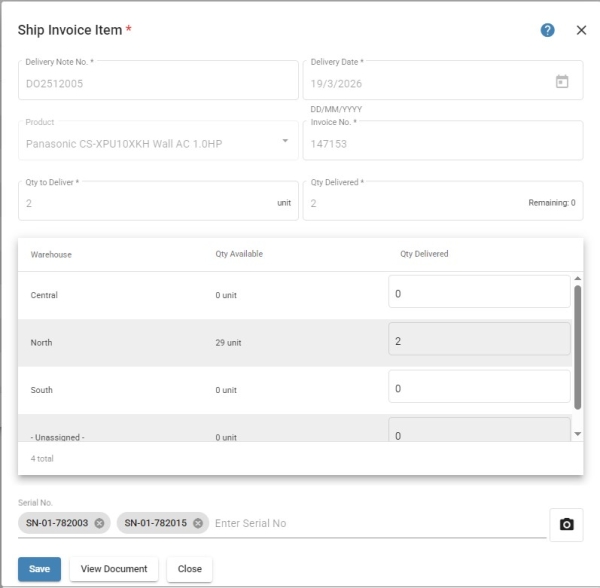
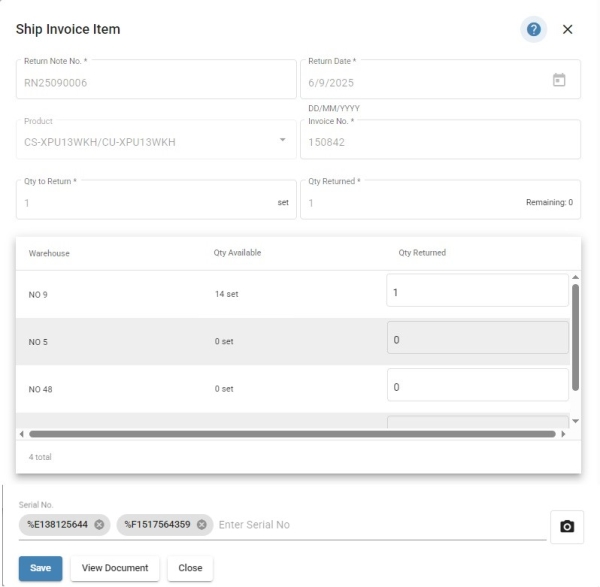 * Delivery Note No.: Delivery note number for the item to be shipped
* Delivery Date: Scheduled date for shipment.
* Product: Item being shipped.
* Invoice No.: Associated invoice number (visible only when linked to an invoice)
* Sales Order No.: Associated sales order number (visible only when linked to a sales order without an invoice)
* Qty to Deliver: Planned quantity for delivery.
* Qty Delivered: Total quantity shipped across all warehouses, automatically updated when warehouse delivery quantities are modified (read-only).
* Warehouse Data Table: Manage item quantities delivered across warehouses
* Delivery Note No.: Delivery note number for the item to be shipped
* Delivery Date: Scheduled date for shipment.
* Product: Item being shipped.
* Invoice No.: Associated invoice number (visible only when linked to an invoice)
* Sales Order No.: Associated sales order number (visible only when linked to a sales order without an invoice)
* Qty to Deliver: Planned quantity for delivery.
* Qty Delivered: Total quantity shipped across all warehouses, automatically updated when warehouse delivery quantities are modified (read-only).
* Warehouse Data Table: Manage item quantities delivered across warehouses
  * **Warehouse**: The warehouse name (read-only)
    * //Warehouses labeled **Unassigned** indicate quantities that are not assigned to any specific warehouse.//
  * **Qty Available**: Current stock quantity in the warehouse (read-only).
  * **Qty Delivered**: Quantity shipped from the respective warehouse (editable). Inventory quantity will be deducted accordingly upon saving.
* **Serial No.**: Enter a list of serial numbers for the items being delivered. (optional)
  * **{{mdi>camera?24}}**: Use the camera on mobile devices to scan barcodes for serial number input.
* **View Document button**: View, print and share delivery note document.
++++ Replenish: Edit incoming replenishment details based on purchase delivery notes. == Accessing Replenish List ==
You can access replenishment records from multiple pages within the system: - From Inventory Page: Click the Options button in the data table row, then select Replenish to view replenishment records for the selected product. - From Purchase Order Page: Click the Options button in the data table row, then select Replenish to view replenishment records for the selected purchase order. - From Purchase Order Form: Navigate to the Delivery Tab and click Replenish button to view replenishment records for the selected purchase order. - From Main Menu: Select Replenish menu from the main menu to view replenishment records for any specific dates. == Manage Replenish List ==
 * The following options are located on the toolbar
  * {{mdi>magnify?24}} **Search**: Allows you to search for specific data
  * {{mdi>refresh?24}} **Refresh**: Updates the current view by reloading the data
  * {{mdi>download?24}} **Export to Excel**: Enables exporting the current view data to an Excel file.
* Additional Filter:
  * **Select Filter**: Choose from options
    * **Delivery Date**: View replenishment records for a specific date.
    * **Product**: View replenishment records for a specific product.
    * **Purchase Order No.**: View replenishment records for a specific purchase order.
    * **All Pending**: View all records that are pending delivery.
* Data Table: //(Note that some of these columns may be hidden in the row details)//
  * {{mdi>chevron-up?24}}: Expand row to view more details.
  * {{mdi>pencil?24}}: Modify replenishment details (Mobile View: expand row to access)
  * {{mdi>playlist-edit?24}}: Modify **purchase order** details (Mobile View: expand row to access)
  * **Status**: Displays the current replenishment status (e.g., None, Pending, Delivered, Exceeded, Cancelled)
    * {{mdi>minus-circle?24}} **None**: No active delivery note is planned.
    * {{mdi>clock-outline?24}} **Pending**: Delivery note items are created but not yet replenished to the warehouse.
    * {{mdi>check-circle?24}} **Delivered**: Delivery note items have been replenished to the warehouse.
    * {{mdi>keyboard-return?24}} **Return**: Return note items are created but have not yet been returned from the warehouse.
    * {{mdi>minus-circle?24}} **Cancelled**: The purchase order has been cancelled.
  * **Delivery Date**: Scheduled date for replenishment.
  * **Product**: Item being replenished.
  * **Qty to Deliver**: Quantity planned for delivery.
  * **Qty Delivered**: Quantity that has been replenished.
  * **Warehouse Detail**: Breakdown of replenished quantities by warehouse.
  * **Open P/O Qty**: Ordered quantity from the supplier that has not yet been delivered (no delivery note issued).
  * **Supplier**: Supplier Name
  * **Delivery Note No.**: Unique identifier for the delivery order.
  * **Purchase Order No.**: Associated purchase order number.
== Replenish Item Form ==
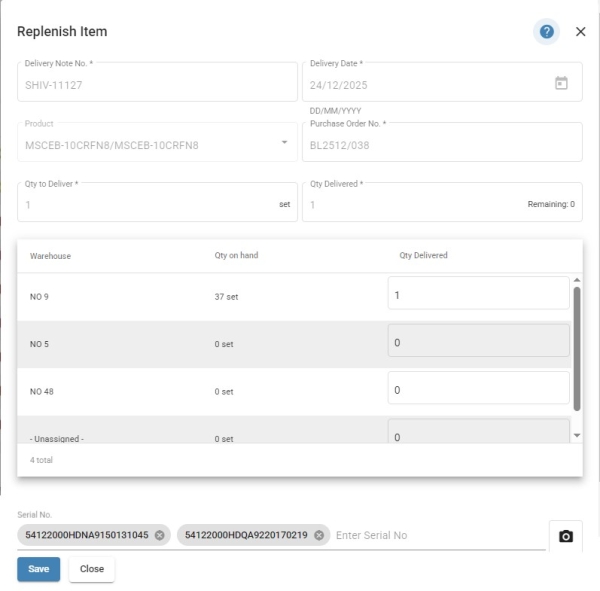 * Delivery Note No.: Delivery note number for the item to be replenished
* Delivery Date: Scheduled date for replenishment.
* Product: Item being replenished.
* Purchase Order No.: Associated purchase order number
* Qty to Deliver: Planned quantity for delivery.
* Qty Delivered: Total quantity replenished across all warehouses, automatically updated when warehouse delivery quantities are modified (read-only).
* Warehouse Data Table: Manage item quantities delivered across warehouses
* Delivery Note No.: Delivery note number for the item to be replenished
* Delivery Date: Scheduled date for replenishment.
* Product: Item being replenished.
* Purchase Order No.: Associated purchase order number
* Qty to Deliver: Planned quantity for delivery.
* Qty Delivered: Total quantity replenished across all warehouses, automatically updated when warehouse delivery quantities are modified (read-only).
* Warehouse Data Table: Manage item quantities delivered across warehouses
  * **Warehouse**: The warehouse name (read-only)
    * //Warehouses labeled **Unassigned** indicate quantities that are not assigned to any specific warehouse.//
  * **Qty Available**: Current stock quantity in the warehouse (read-only).
  * **Qty Delivered**: Quantity replenish to the respective warehouse (editable). Inventory quantity will be added accordingly upon saving.
++


- inventory.1757141972.txt.gz
- Last modified: 2025/09/06 06:59
- by chillhubadmin