This is an old revision of the document!
Master Data
To make the most of the system, it's essential to configure your master data accurately from the start. This guideline will help you ensure that all required data is properly set up and ready for use.
Want to save time? Try Chillhub’s Batch Import feature to get through this step much faster.
Overview
- Industry: Represents the broad business sector or field in which your products and services are used or sold. (e.g Air Conditioner)
- Categorize and define other master data elements
- Often used to narrow down the list of Products, Services, and Tasks available
- Used as a filter criteria in the Pricing and Inventory pages
- Users can access and work with data from any industry, they can only select one default industry to streamline their workflow, which acts as the default filter for initial views
- Product Type: Defines the category or classification of a product based on shared characteristics or use cases. (e.g. Wall Mounted, Cassette)
- Categorizes and define Products
- Can be added to Quotations, Sales Orders, and Invoices, particularly when specific products are unknown or not tracked in the system.
- e.g. For a repair service, the Product Type “Cassette” can be added to the invoice to indicate the category of the equipment serviced, even if the specific model isn’t tracked in the system.
- Product: Represents specific goods, items and parts offered by the organization, identified by unique product codes/model number.
- Can be added to Quotations, Sales Orders, Invoices, and Purchase Orders
- Inventory stock levels for each product can be tracked
- Shipping, Replenishment, and Adjustment (Internal consumption) processes of the products directly contribute to accurate inventory tracking,
- Incoming Deliveries (from suppliers) and Outgoing Deliveries (to customers) of products can be planned
- Inventory cost of products can be tracked through Purchase Invoices
- Selling prices can be defined for each product, ensuring consistent pricing across all documents
- Service: Refers to additional charges or non-physical offerings that your company provides. (e.g. Overhaul, Wheel Alignment)
- Can be added to Quotations, Sales Orders, Invoices
- Prices for each service can be defined
- Task: Represents a specific units of work or activities carried by teams that can be scheduled. (e.g. Delivery, Repair)
- Define the work to be done for each scheduled job
- UOM Conversion: Defines alternative units of measure (UOM) and their corresponding conversion factors.
- Activate UOM Conversion add-on in the subscription plan to enable the feature.
- Can be configured for Products, Product Types, and Services (if applicable).
- Enables selection of alternative UOMs in transaction documents such as Invoices, Sales Orders, Purchase Orders, and Quotations.
- Ensures accurate quantity and inventory tracking by converting values to the product’s base UOM using the defined conversion factor.
Manage Master Data
- Expand the Master Data menu
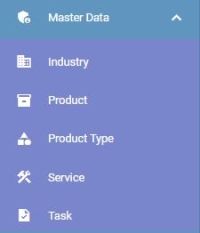
- Select the desired menu you wish to open
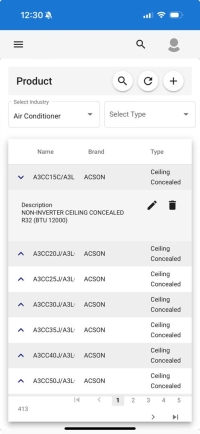
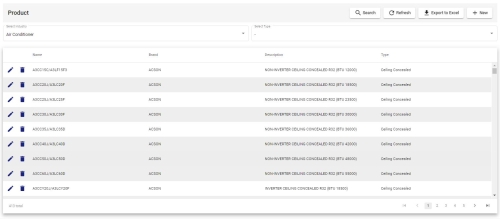
- The following options are located on the toolbar
- Search: Allows you to search for specific data
- Refresh: Updates the current view by reloading the data
- Export to Excel: Enables exporting the current view data to an Excel file.
- New: Creates a new entry or record in the system.
- Additional Filters:
- Industry: Use the Industry dropdown to filter master data by industry
- Product Type: Filter product by product types (only available for Product)
- Data Table:
- : Expand master data to view more details. (available only in Mobile View)
- : Modify master data details (Mobile View: expand row to access)
- : Delete master data (Mobile View: expand row to access)
- Relevant fields associated with each master data entity


- Create/Edit Form fields include:
- Name: The primary unique identifier
- Available in all master data
- Description: A brief description or additional details about the entity
- Available in Product, Service, Task
- Will be displayed in documents such as purchase order, invoices, quotations, and sales orders.
- Industry: The industry to which the entity belongs
- Available in all master data (except Industry)
- Default UOM: Default unit of measure for the entity's transactions. (e.g. set, kg, feet, EA (each))
- Available in Product, Product Type, Service
- UOM Conversion: Defines alternative units of measure and their corresponding conversion factors relative to the default UOM.
- Available in Product, Product Type, Service
- Classification Code: Category of products or services as required for LHDN e-Invoice submission
- Available in Product, Product Type, Service
- If classification code not defined, “022- Others” will be used during e-Invoice submission
- Full List available on the MyInvois Official Site
- External Code: An optional reference code used to map this item to an external system.
- Note: To enable accounting integration, please contact Chillhub Support to enable and install the required integration module.
- Available in Product, Product Type, Service
- Type: Define Product Type of the product
- Only available in Product
- Brand: Brand of the product
- Only available in Product
- Taxable By Default: Determines whether tax is automatically applied when this product or service is used in transactions
- Available in Product, Product Type, Service
- Obsolete: Mark this item as obsolete to indicate it is no longer offered or used. Obsolete items will be hidden from selection in future transactions but retained for historical records.
- Available in all master data (except Industry)
Create On Demand
- Master data can be created on demand by selecting the icon located on the right side of each master data dropdown.
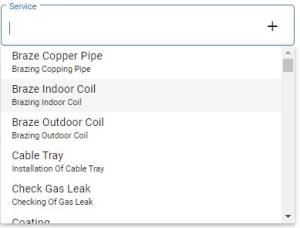
- For instance, users can create any missing master data when creating invoices, creating purchase orders, setting up inventory, configuring pricing, and other related tasks.

UOM Conversion
Activate UOM Conversion add-on in the subscription plan to enable the SST feature.
- Expand the Master Data menu
- Select UOM Conversion

- The following options are located on the toolbar
- Search: Allows you to search for specific data
- Refresh: Updates the current view by reloading the data
- Export to Excel: Enables exporting the current view data to an Excel file.
- New: Creates a new entry or record in the system.
- Data Table:
- : Expand row data to view more details. (available only in Mobile View)
- : Modify row data details (Mobile View: expand row to access)
- : Delete row data (Mobile View: expand row to access)
- Name: Name of the UOM Conversion
- Alternate UOM 1: Display the name and conversion factor of the first alternate UOM.
- Alternate UOM 2: Display the name and conversion factor of the second alternate UOM.
- Alternate UOM 3: Display the name and conversion factor of the third alternate UOM.
- Alternate UOM 4: Display the name and conversion factor of the fourth alternate UOM.

- Create/Edit Form fields include:
- Name: The primary unique identifier
- Alternate UOM 1, Conversion Factor : Name and conversion factor of the first alternate UOM.
- Alternate UOM 2, Conversion Factor : Name and conversion factor of the second alternate UOM.
- Alternate UOM 3, Conversion Factor : Name and conversion factor of the third alternate UOM.
- Alternate UOM 4, Conversion Factor : Name and conversion factor of the fourth alternate UOM.
- Example:
- Product: Power Cable 4-Core 2.5mm, Default UOM: meter, UOM Conversion: meter
- UOM Conversion: meter with Alternate UOM: feet, Conversion Factor: 0.3048
- i.e., 1 foot = 0.3048 meter
- When Power Cable 4-Core 2.5mm is selected as an invoice item, both meter and feet are available in the UOM selection.
- When feet is selected and quantity is 2, the system will deduct stock as: 2 × 0.3048 = 0.6096 meters.
Continue reading this for detailed guidelines on setting up initial data effectively